Salesforce Fundraising Campaign Guide: Create Campaigns in Nonprofit Cloud in Minutes
Fundraising doesn’t have to be complicated or time-consuming. With AC Fundraising, nonprofits can quickly launch fundraising campaigns that are fully synced with Salesforce Nonprofit Cloud, making it easy to collect donations, track progress, and manage campaign data all in one connected ecosystem.
In this guide, we’ll walk you step by step through the process of creating a fundraising campaign in Salesforce Nonprofit Cloud using the AC Fundraising app. We’ve also prepared a clear and helpful video tutorial so you can see exactly how the campaign is created in real time. By the end, you’ll see just how fast and user-friendly the entire process really is.
Step 1: Accessing the Campaign Creation Area
Once you’re logged into the portal as an administrator, start by navigating to your profile settings in the top right corner. From there, select the My Campaigns tab.
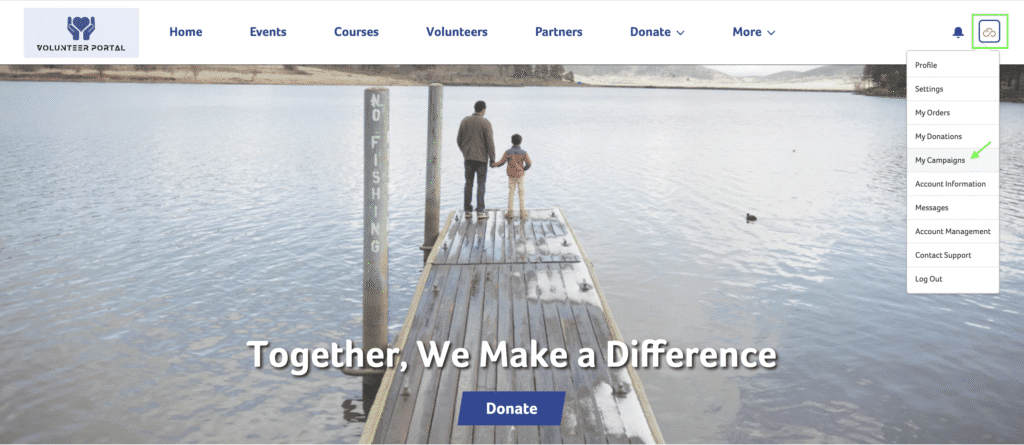
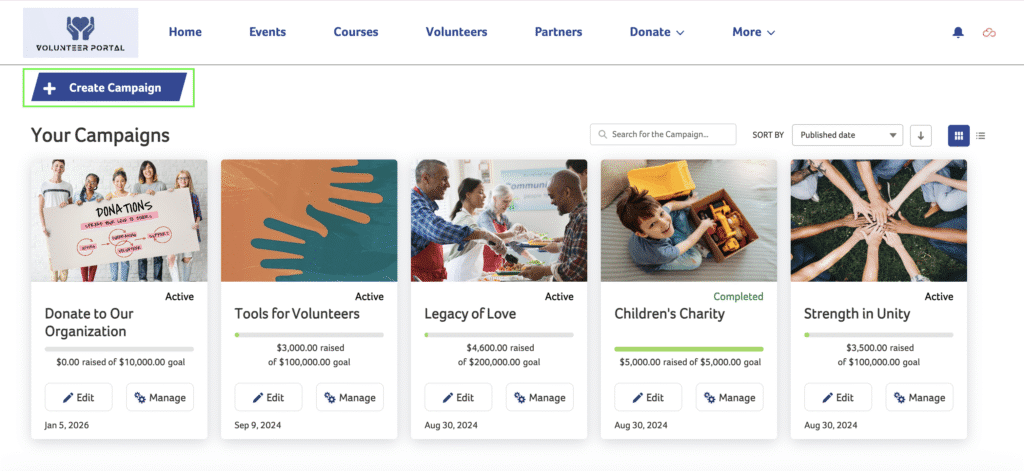
This is the central place where you can view, manage, and create fundraising campaigns.
To begin creating a new campaign, simply click the Create Campaign button. When you do, a campaign creation form will appear in a pop-up window, guiding you through the setup process.
Step 2: Defining the Campaign Basics
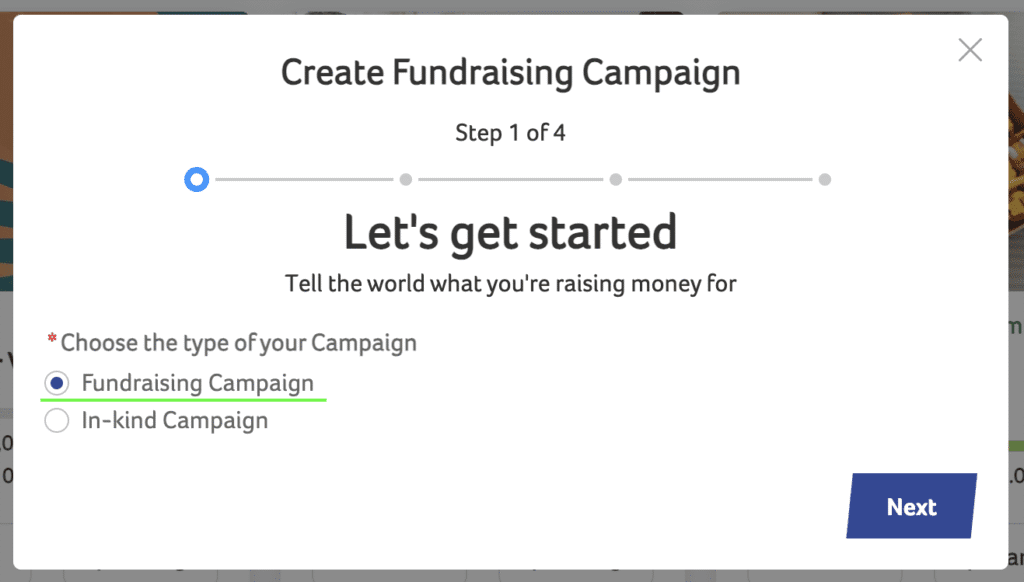
The first step in the form is choosing the campaign type. This allows you to categorize your fundraising effort correctly. You can choose Fundraising or In-kind Campaign. For our purpose, we should choose Fundraising Campaign.
Next, enter the campaign name and set your fundraising goal. This goal represents the total amount you aim to raise through the campaign. You’ll also have the option to decide whether the campaign should automatically be marked as complete once the fundraising goal is reached.
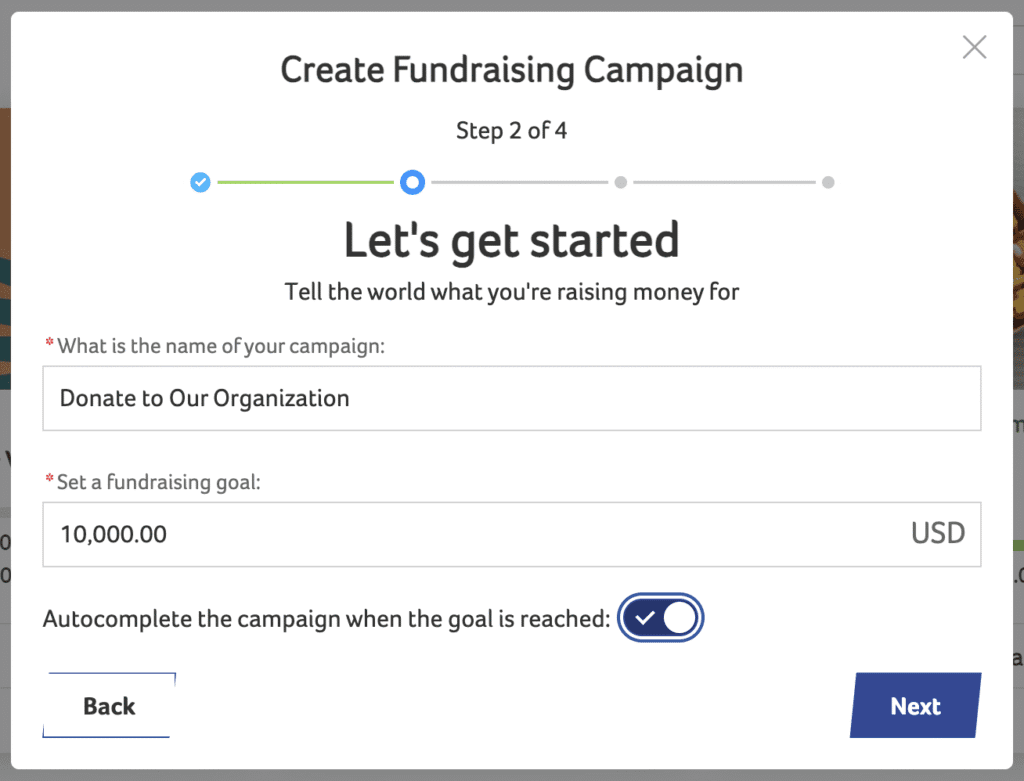
These settings help define the structure and purpose of your campaign from the start.
By the way, we also have similar instructions and a video on how to create a peer-to-peer fundraising campaign. Come check it out ⬇️
Peer-to-Peer Fundraising in Salesforce: How to Create a Campaign in Nonprofit Cloud

Step 3: Adding Visuals and Storytelling
After setting the basic details, upload a cover image for your campaign. This image will visually represent your cause and help engage potential donors.
Next, share the story behind the campaign. This is where you explain what you’re fundraising for and why it matters. Clear and compelling storytelling helps donors understand the impact of their contributions and encourages them to get involved.
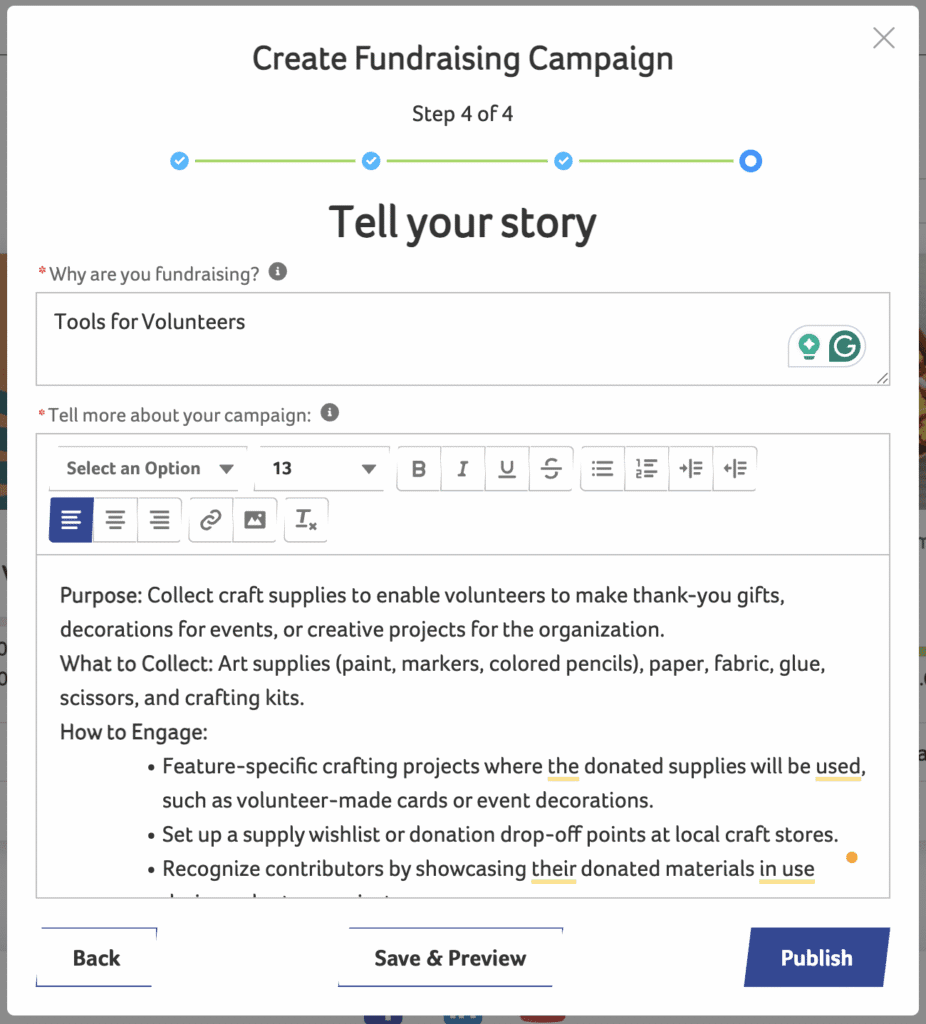
Step 4: Campaign Creation Complete
Once all required information is filled in, the campaign setup is complete. Your newly created campaign will now appear on the My Campaigns page, confirming that it’s been successfully created.
Viewing the Campaign Internally
Now that the campaign is live, let’s look at how it appears across connected systems.
In the AC Fundraising App
Within the internal environment, the campaign is displayed in the Fundraising Campaigns tab of the AC Fundraising app. From here, you can view all campaign-related information, including campaign details and donations made.
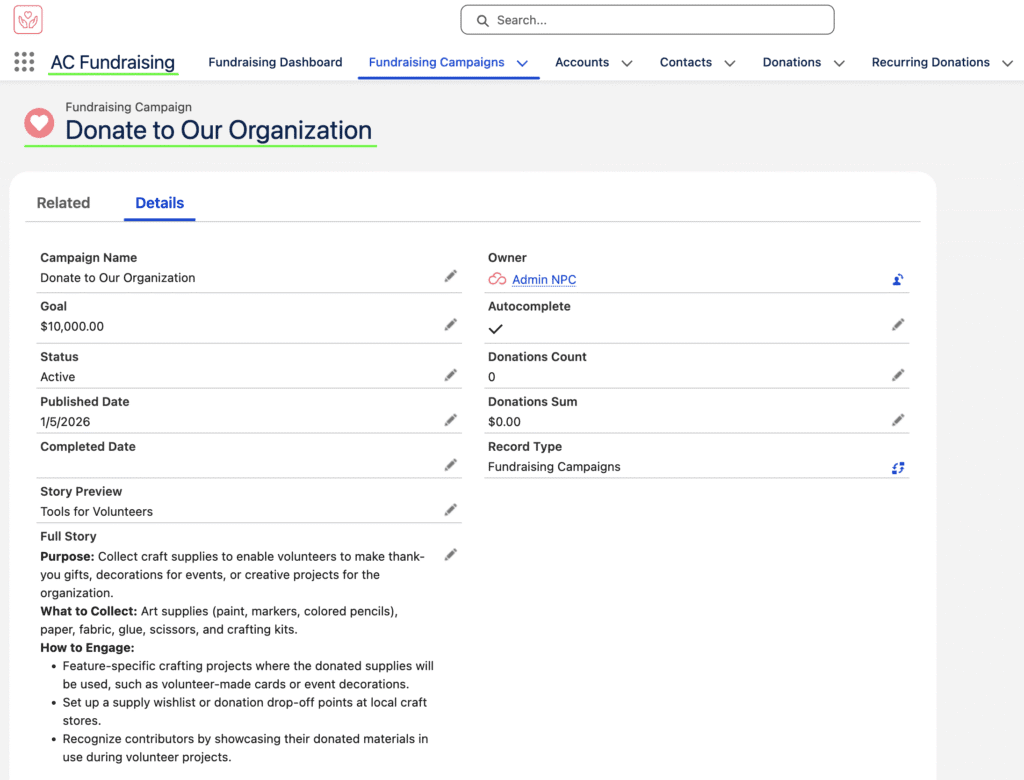
In Salesforce Nonprofit Cloud
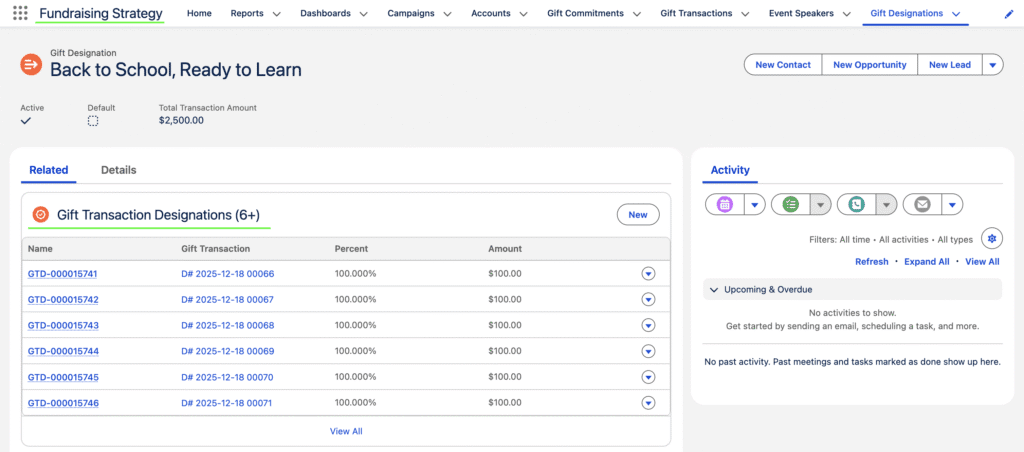
Next, switch to Salesforce Nonprofit Cloud. In the Gift Designation tab, you’ll see the same campaign listed. This integration allows you to track campaign progress and access additional related data directly within Salesforce.
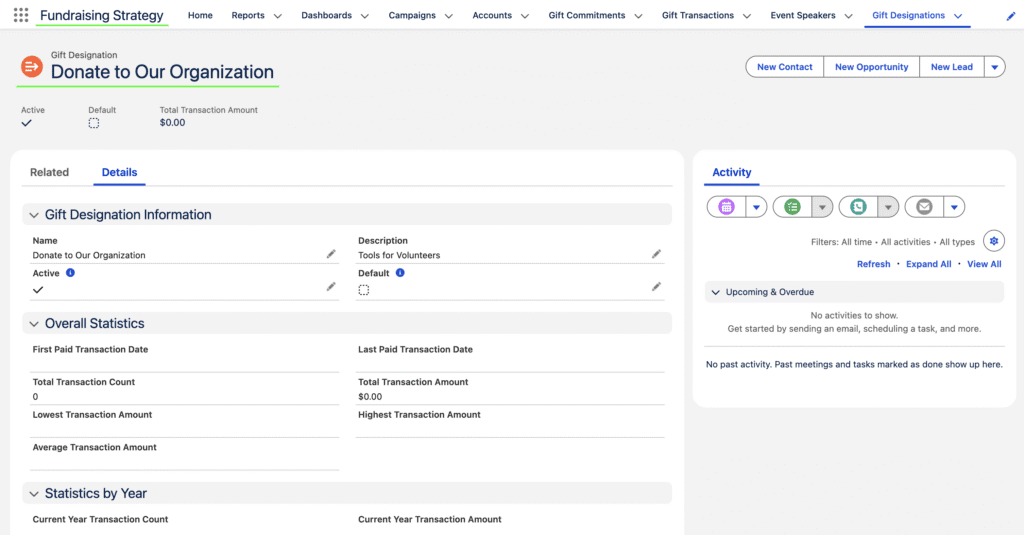
We also have another video and blog post on how to create a peer-to-peer fundraising campaign in Salesforce NPC. Check it out if you’re interested ⬇️
Making a Donation to a Campaign
Next, let’s look at how easy it is to make a donation. Open any fundraising campaign you’d like to support, which brings you to the campaign’s detail page. From there, click the Donate button.
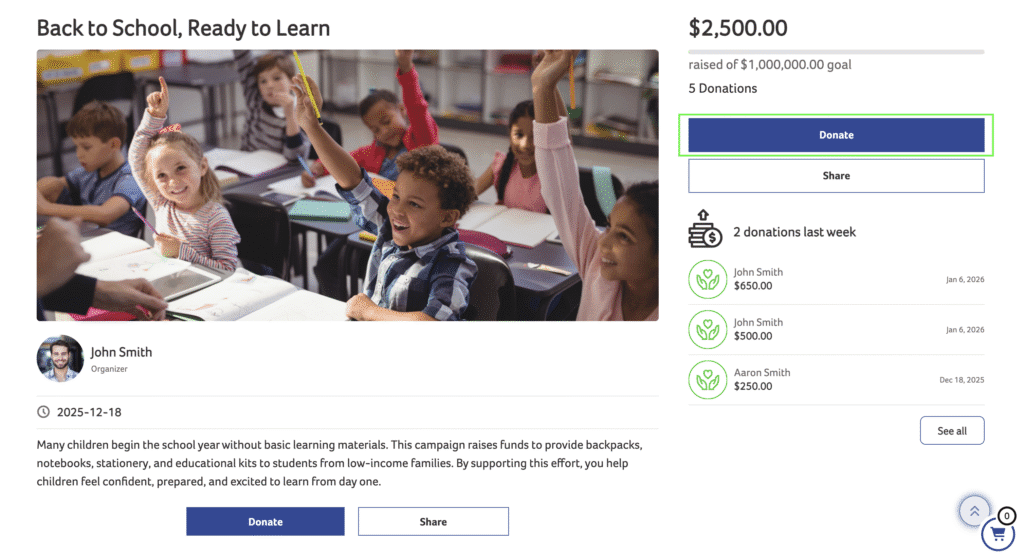
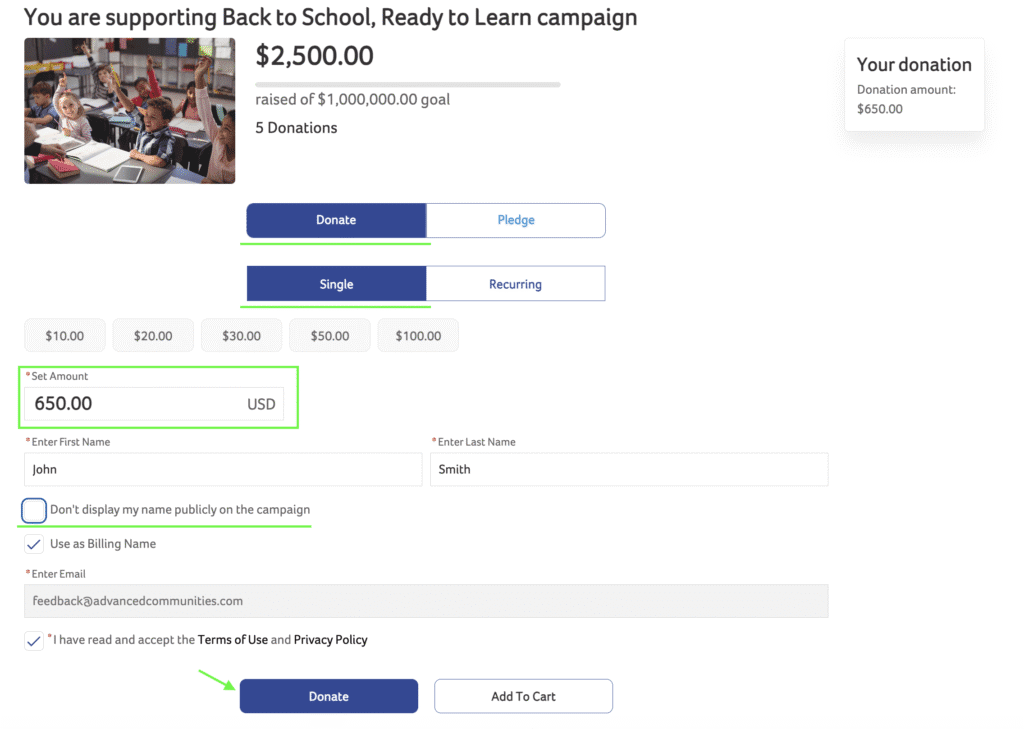
On the donation screen, choose the donation type and select whether the contribution will be a one-time or recurring donation. Then enter the donation amount and optionally check a box to remain anonymous.
If you are an authenticated user who has made previous transactions, your payment information is automatically pre-populated. Otherwise, you can easily add a new payment method. To complete the process, click Pay.
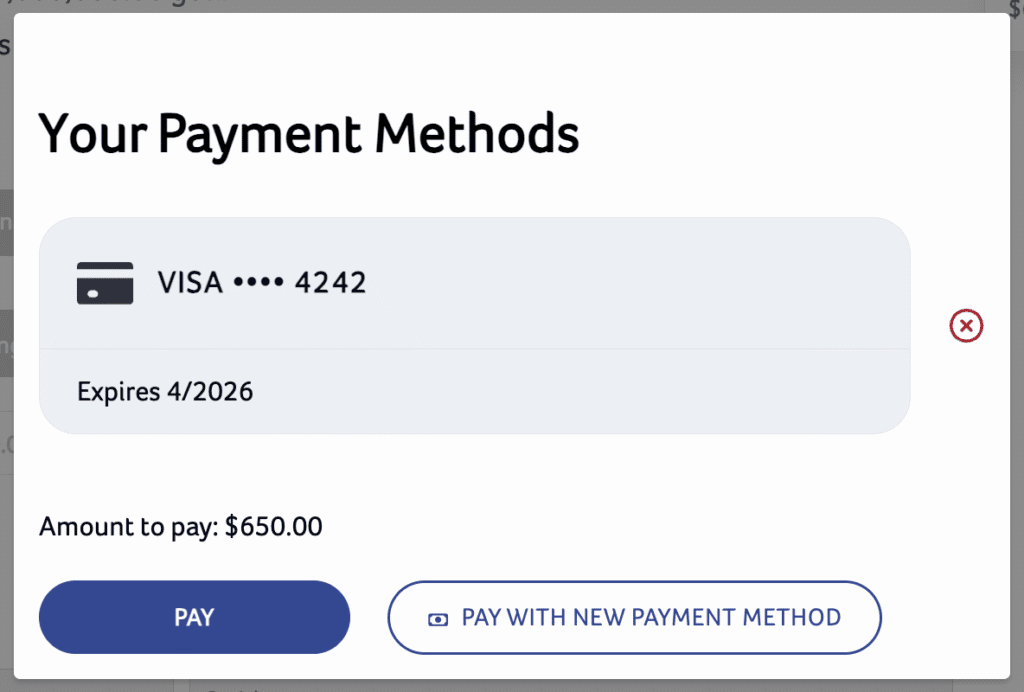
After this, the donation is completed, and a receipt is automatically sent to your inbox.
Viewing Donations in Salesforce Nonprofit Cloud
Now let’s see how the donation appears in Salesforce Nonprofit Cloud. By navigating to the Gift Transactions tab, the donation can be found and reviewed immediately, along with all related transaction details.
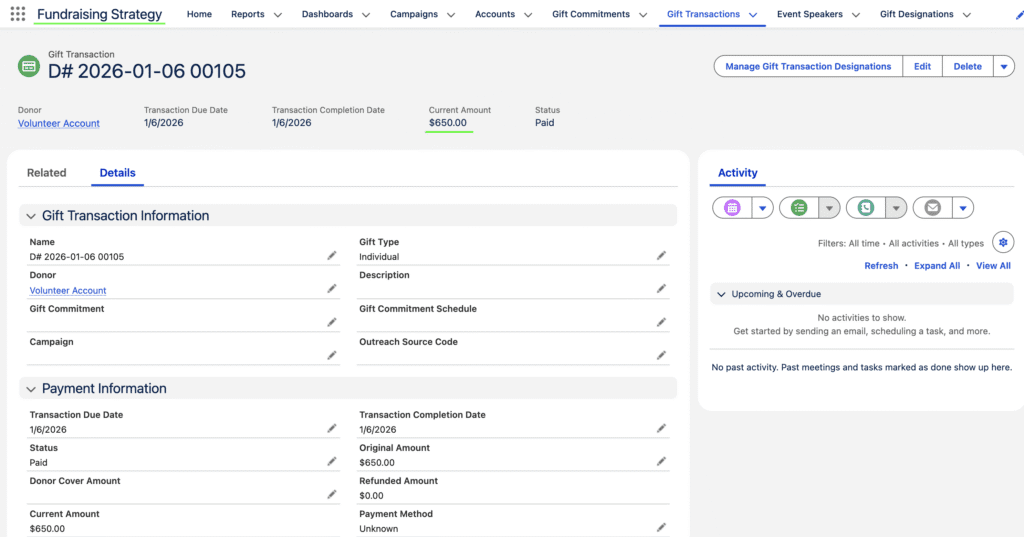
The transaction is also linked directly to the campaign. By opening the relevant campaign in the Gift Designation tab, you can see all donations associated with that specific fundraising effort in one place.
Quick. Connected. User-Friendly.
With just a few clicks, your fundraising campaign is live and ready to start collecting donations. The seamless connection between AC Fundraising and Salesforce Nonprofit Cloud ensures that your data stays in sync and your team stays informed, without extra manual work.
To learn more about Advanced Communities and how it can support your fundraising efforts, book a call with us.