
How to Create Salesforce Assignment Rules: a Step-by-Step Guide
Last Updated: February, 26, 2026
Salesforce is a strong and even irreplaceable tool when it comes to modern customer relationship management, customer service, and sales. One of the most important features for your marketing and service activities is Salesforce assignment rules.
Assignment rules help businesses automatically route leads and cases to the right people — faster, smarter, and without manual effort. Instead of manually assigning records, you can define logic that distributes incoming requests based on criteria like region, product, priority, or source.
In this guide, you’ll learn how to create assignment rules in Salesforce, including setting up a queue, configuring Salesforce case assignment rules, and creating Salesforce lead assignment rules.
Prerequisites
You’ll need admin access to your org, and it’s strongly recommended to test everything in a Sandbox before deploying to production.
Assignment Rules in Salesforce Explained
In Salesforce, Assignment Rules automate the process of assigning records to users or queues based on defined criteria.
There are two main types:
- Salesforce Lead assignment rules – automatically distribute Leads to users or queues.
- Salesforce Sase assignment rules – automatically distribute Cases to users or queues.
Salesforce Rerminology Refresher
To better understand the Salesforce terminology, we’ll give you a short definition of what a Lead is and what a Case is in Salesforce:
- Lead – a prospect who has shown interest but hasn’t purchased yet.
- Case – a customer support request, complaint, or inquiry.
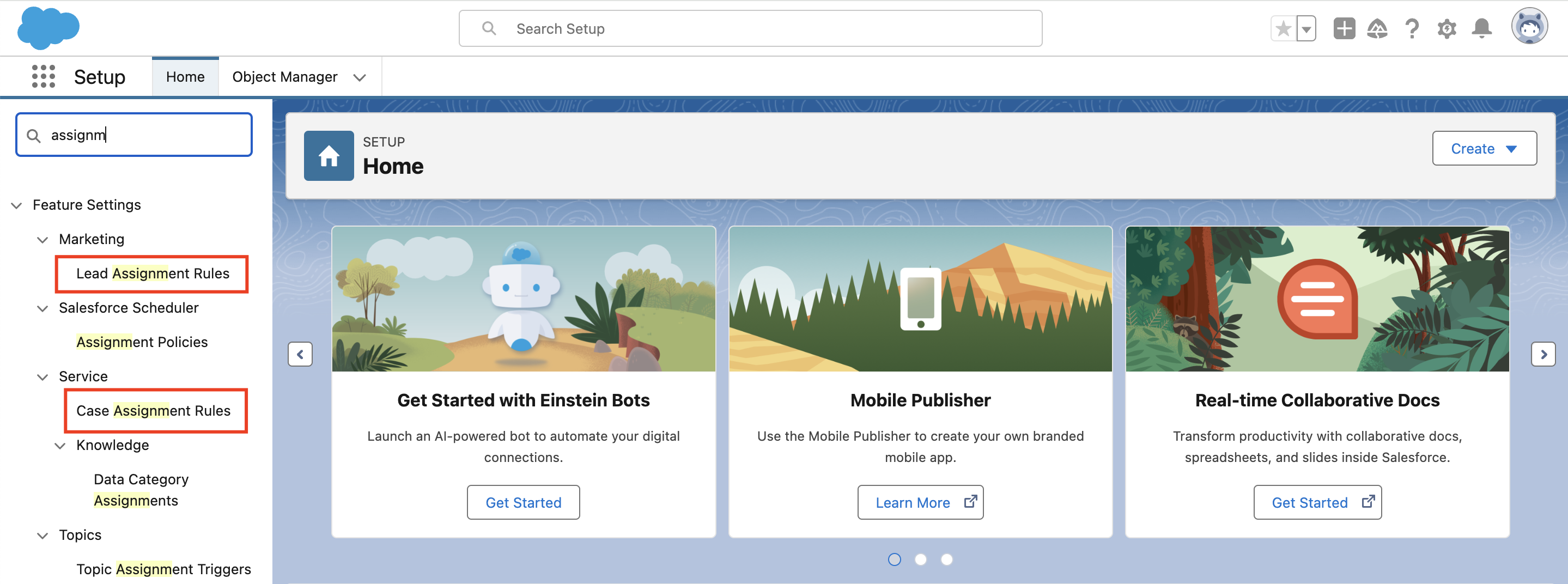
Where to Find Assignment Rules in Setup
- Go to Setup
- Use Quick Find
- Search for:
- Lead Assignment Rules (appears under the Marketing tab)
- Case Assignment Rules (appears under the Service tab)
Key Takeaway
- With Case assignment rules, you can automatically deliver specific Cases to the right people in the team or departments who are specialized in a certain area (aka subject-matter experts), so that the customers receive timely and qualified responses.
- Assignment rules in Salesforce enable you to sort cases by priority according to the customer’s support package (Platinum, Silver, etc.).
- With Lead Assignment Rules you can specify how leads will be assigned to users or queues. They can do that regardless of whether leads are created manually or imported with the Data Import Wizard.
Salesforce Classic vs Lightning: Key Differences

Assignment Rules Limitation
You can’t build as many assignment rules as you see fit. There are limitations in the assignment rules in Salesforce that you should keep in mind. The platform limits the number of rules, rule entries, and criteria you can create:
- Up to 2,000 total rules across objects (applies to any combination of workflow, assignment, auto-response, and escalation rules, active or inactive)
- Up to 50 active rules per object (applies to any combination of active workflow, assignment, auto-response, and escalation rules, as well as record change processes)
- Up to 3,000 entries per rule
- Up to 300 formula criteria entries per rule
- Up to 200 actions allowed per rule when creating assignment rules
- Up to 25 filter criteria per rule entry
Anyway, you don’t need to memorize the exact numbers. Instead, focus on best practices:
- Keep rules simple and structured
Build clear, logically ordered rule entries so they are easy to read, troubleshoot, and modify as your business processes evolve. - Use a fallback (catch-all) entry
Always add a final rule entry without criteria to ensure that any record not matching earlier conditions is still assigned and never left without an owner. - Document your assignment logic
Maintain internal documentation explaining why each rule and criterion exists, so future admins can update the system without breaking routing logic. - Avoid unnecessary complexity in the criteria
Overly complex conditions increase the risk of conflicts and make debugging difficult, especially when multiple automation tools interact.
Well-designed rules are easier to maintain, scale, and audit as your organization grows.
Creating Assignment Rules in Salesforce
Now that you know what assignment rules are for, we’ll show you how to set them up. After reading this paragraph, you’ll understand how to create a Case Queue, Case Assignment Rules, and Lead Assignment Rules in Salesforce. Spoiler alert: this is no sweat!
1. Case Queue in Salesforce Creation
Now, let’s get the ball rolling.
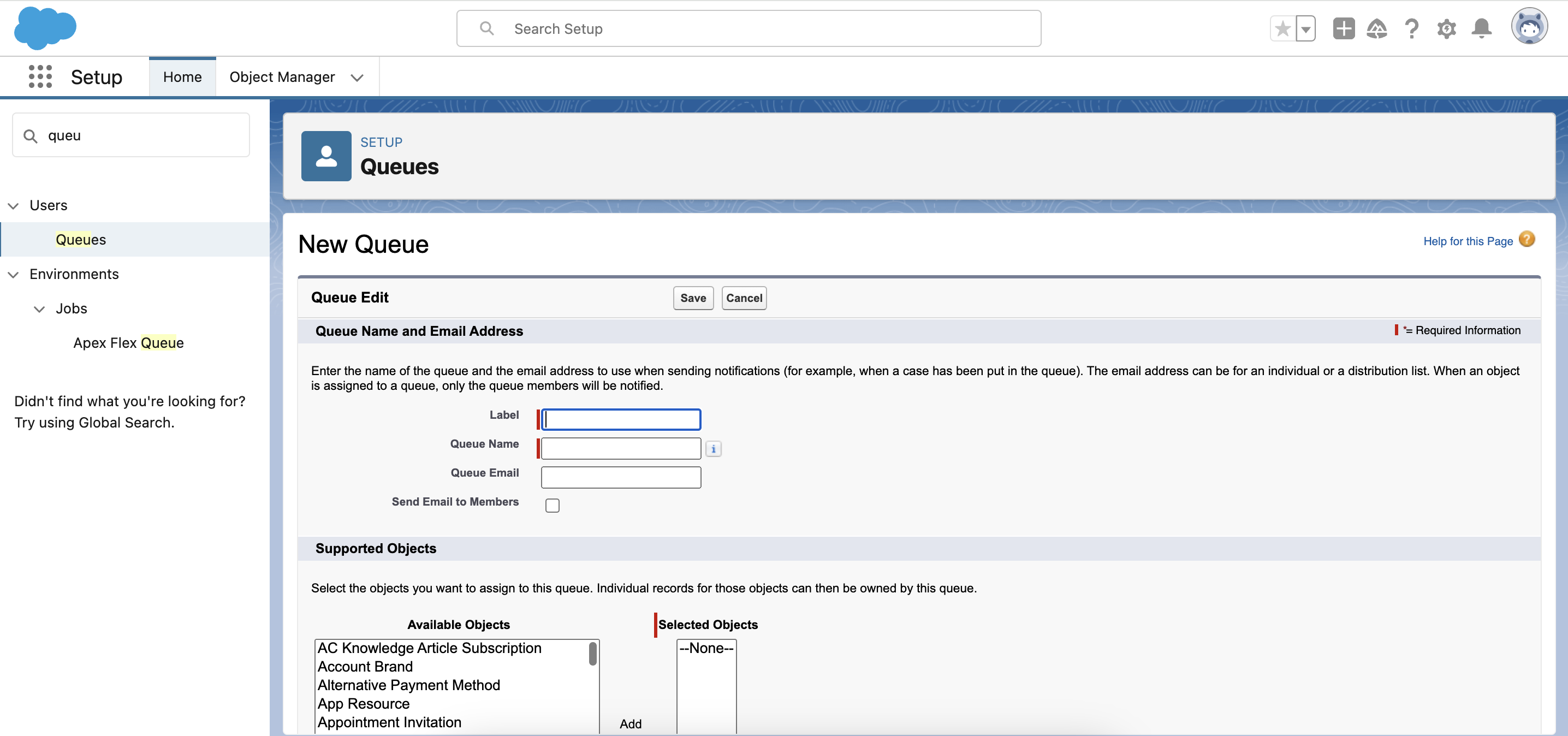
- Navigate to Setup in your Salesforce organization.
- Find “Queue” in the Quick Find box
- Click New Queue
- Enter its Name, Label, and Queue Email (leave this field empty if you want the support employees included in the queue to receive emails when new cases are created, or type the email addresses of the people who will receive this kind of notification)

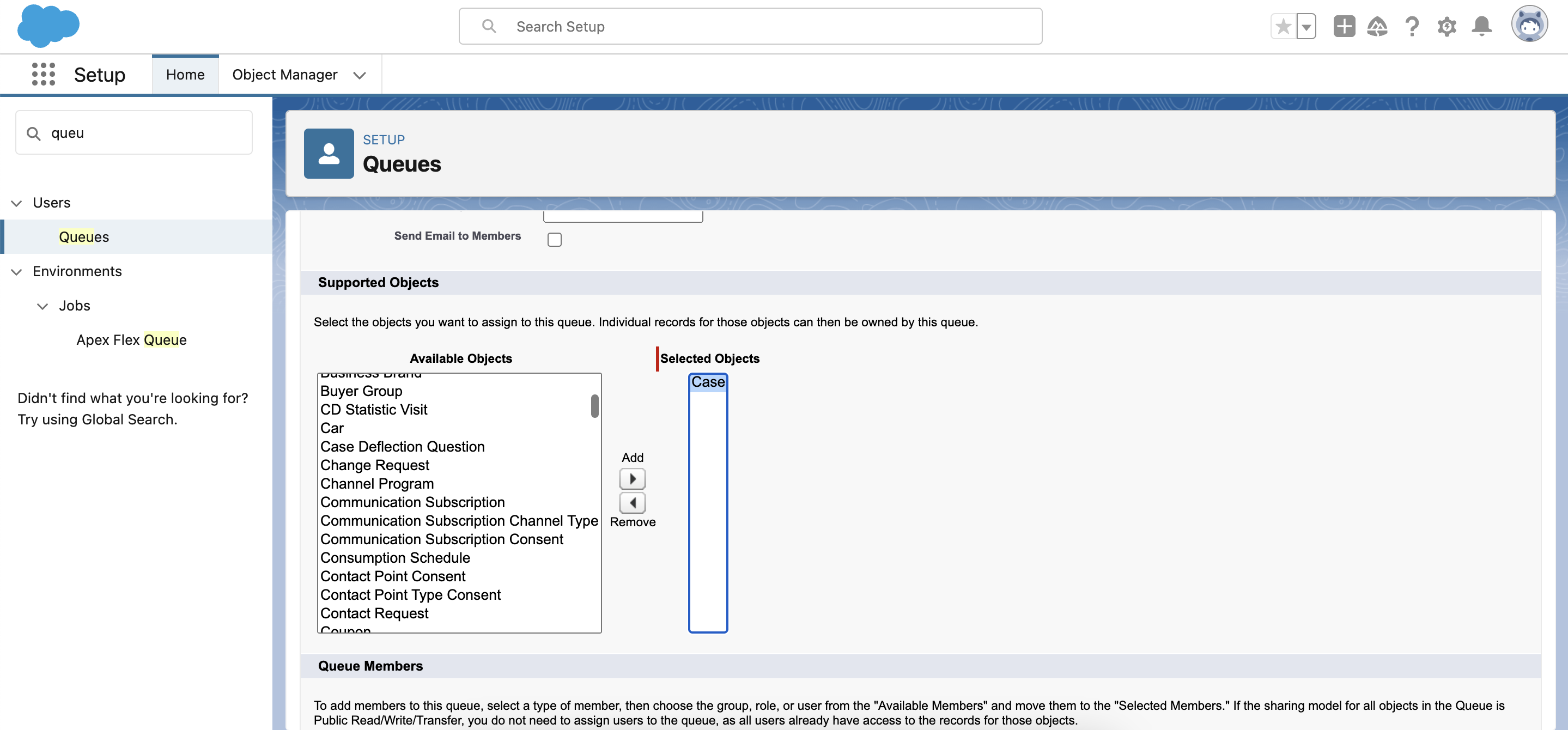
- Under Supported Objects, add Case to the Selected Objects column

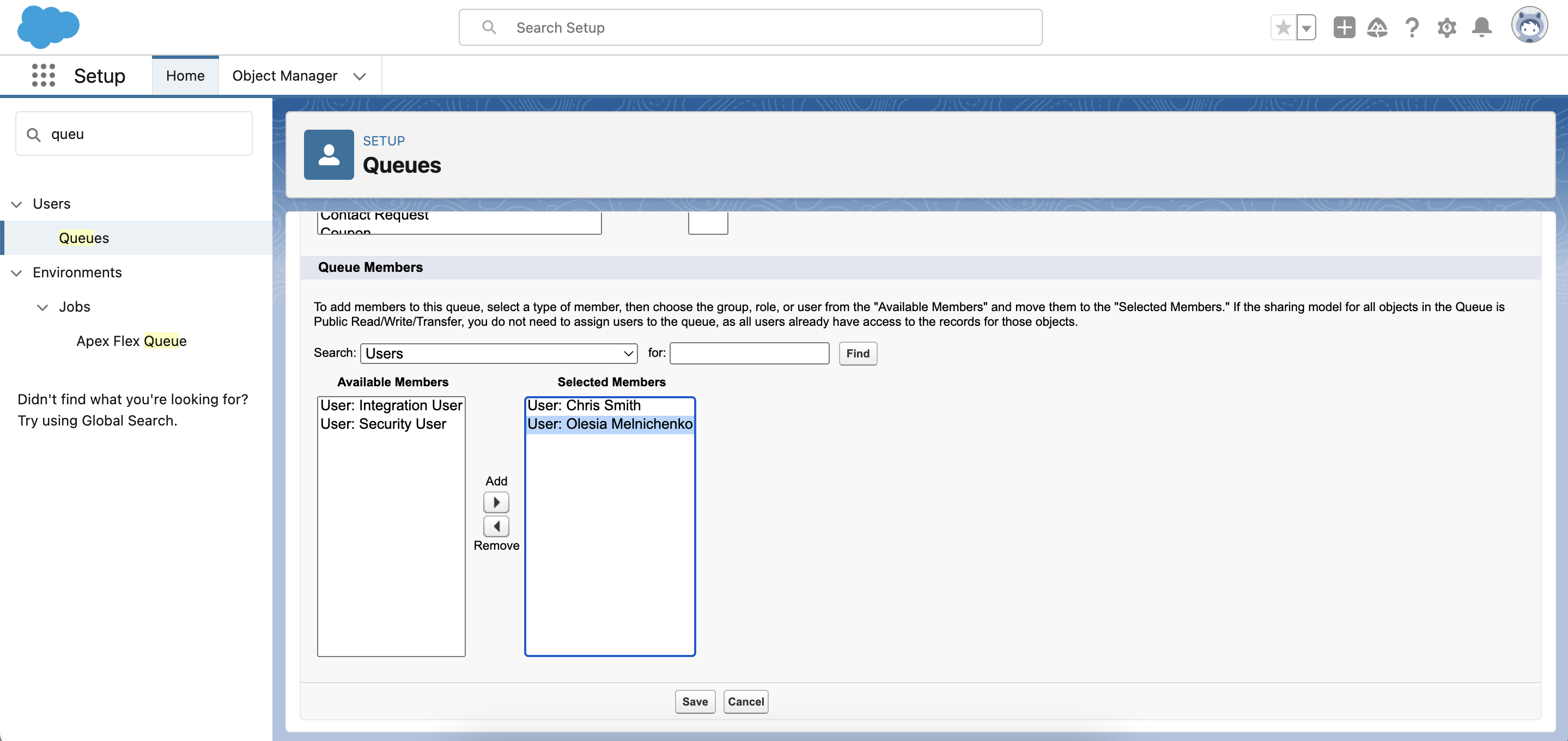
- Under Queue Members, choose members and add them to the Selected Members column

- Click Save
What is a queue? It allows groups of users to manage a shared workload more effectively. A queue is basically a location where records can be transferred for processing by a group member.
Use a Queue when multiple team members handle similar cases (e.g., Tier 1 Support).
Assign directly to a User when responsibility must be clearly defined from the start.
2. Case Assignment Rule Creation
To create one Case Assignment Rule:
- Access Setup in your Salesforce organization.
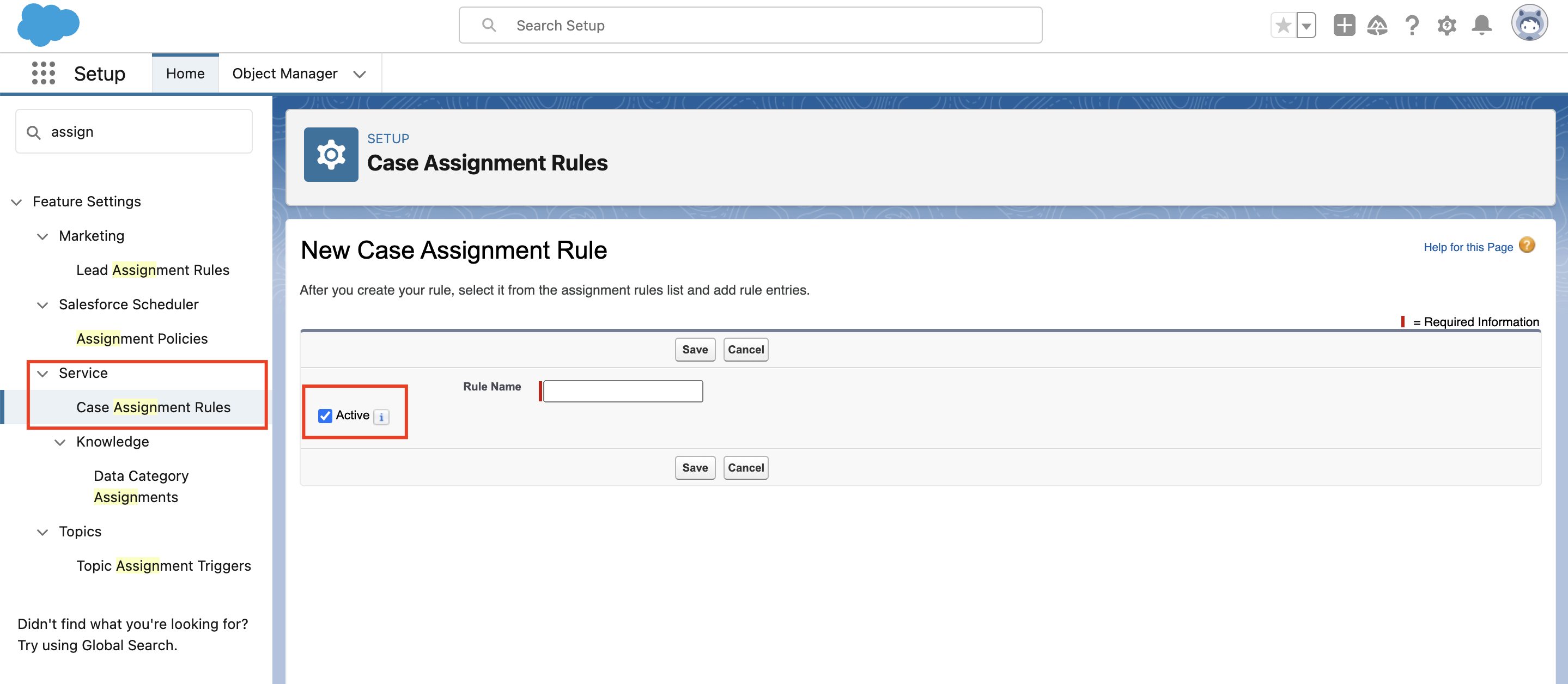
- Type Assignment Rules in the Quick Find box and choose Case Assignment Rules.
- Click the New button
- Enter the Rule Name
- Make sure you tick the Activate field to make your new assignment rule legitimate. Remember that this action will deactivate any other current Case Assignment Rule
- Click Save

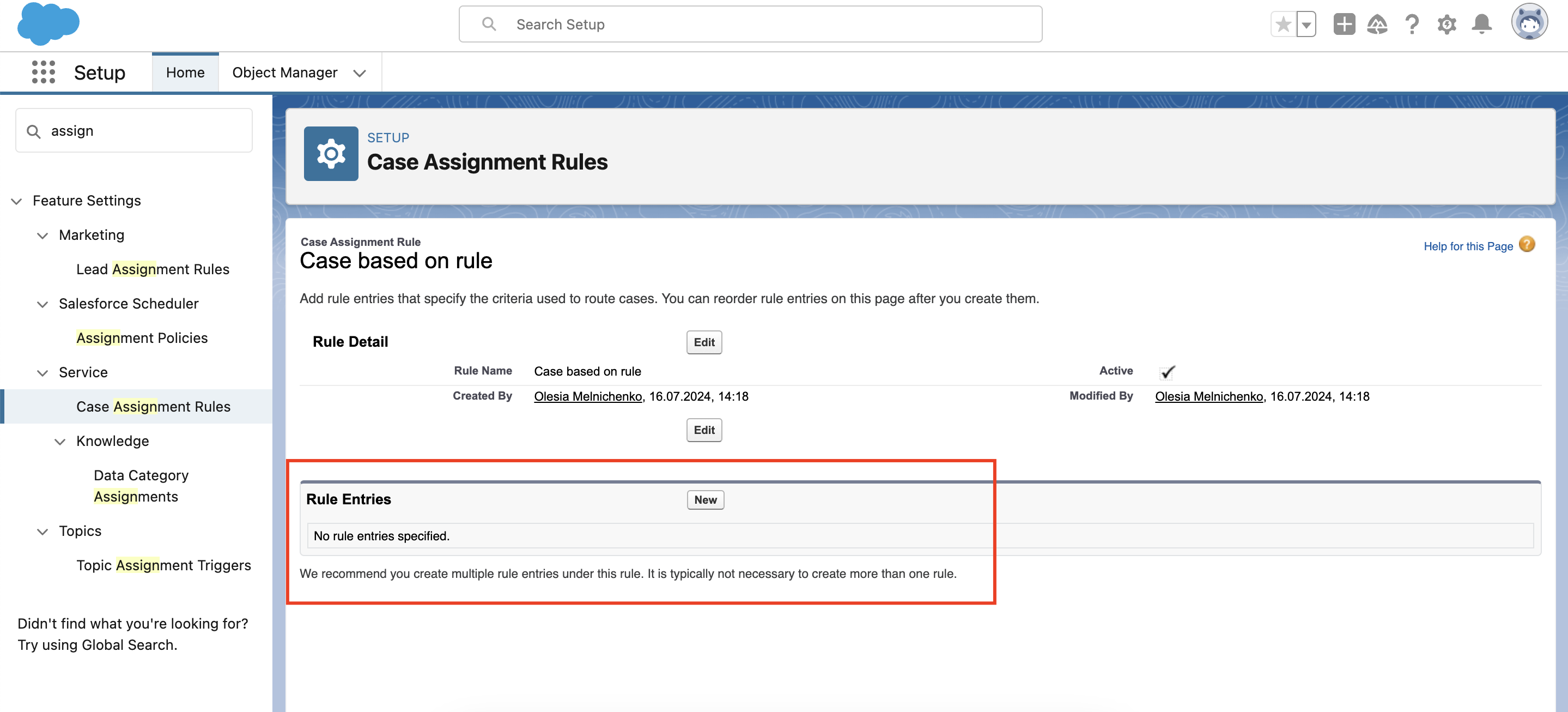
- Click on the rule you just created
- Click the New button in the Rule Entries section

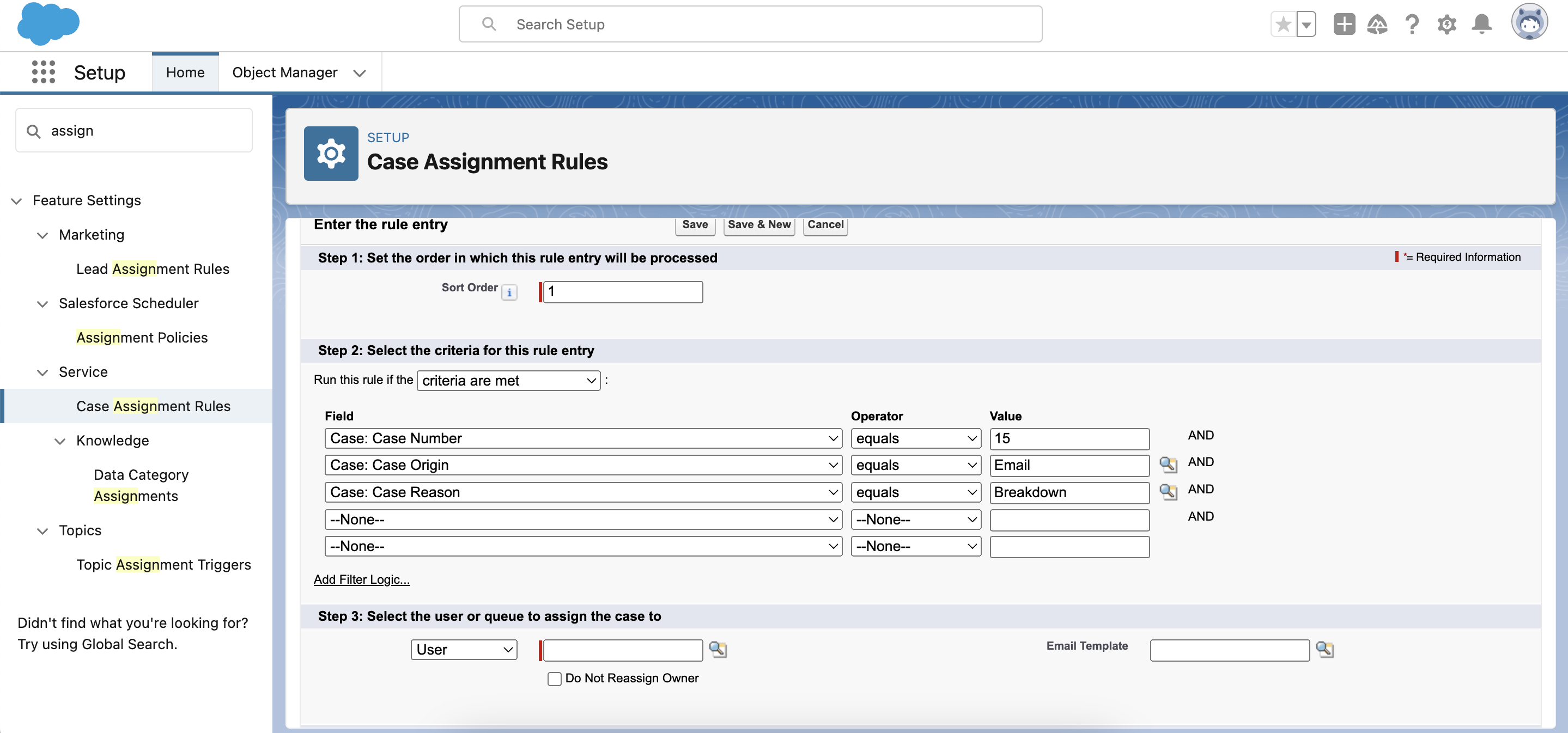
- This is a very important step. The Sort Order section defines the order in which entries will be processed. If you enter “1”, it means that this entry will be processed first.
- Select the criteria for this rule entry. Here, you have several options: to run this rule if the criteria are met or if the formula evaluates to true. Here are some examples:
- Case Origin = Email
- Case Reason = Breakdown
- Product = X
- Region = EMEA
- Priority = High

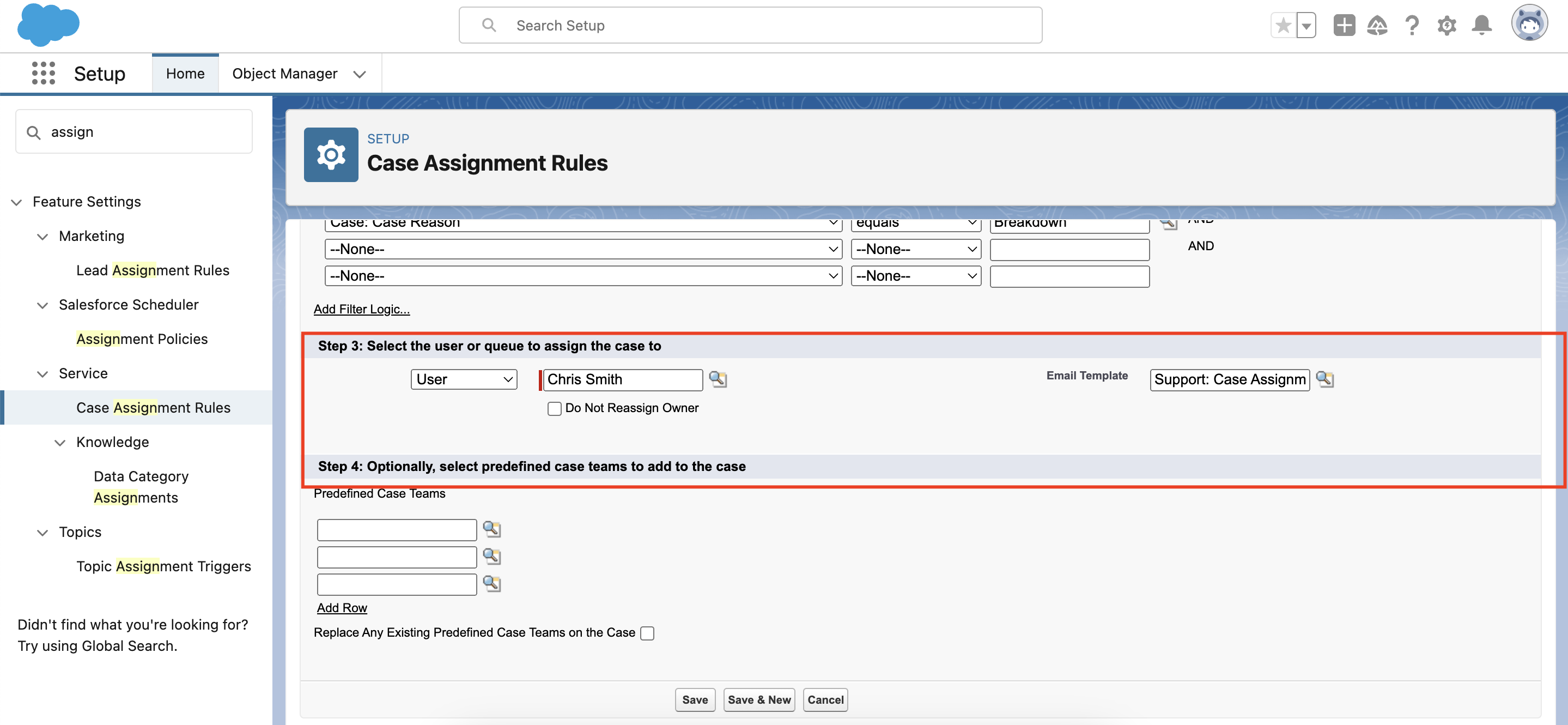
- Choose the User or a Queue this rule entry will be assigned to
- Choose the Email Template this user will receive when the new case is assigned to them.

- Hit the Save button.
- Test your rule. Create a test Case and verify Owner (User or Queue), notification emails, and correct rule execution order.
Common Mistakes:
- Forgetting to activate the rule
If the rule isn’t activated, Salesforce will ignore it entirely, and your new logic won’t apply to incoming records. - Incorrect sort order
Since rule entries are evaluated from lowest to highest sort order number, placing a broad condition first can prevent more specific entries from ever being evaluated. - Criteria too broad or too narrow
Overly broad criteria may assign too many records to one user or queue, while overly narrow conditions might result in records not matching any entry. - No fallback entry
Without a final catch-all rule entry, records that don’t meet any defined criteria can remain unassigned or follow unintended routing logic.
Always create a final rule entry without criteria to catch unmatched cases and ensure consistent ownership.
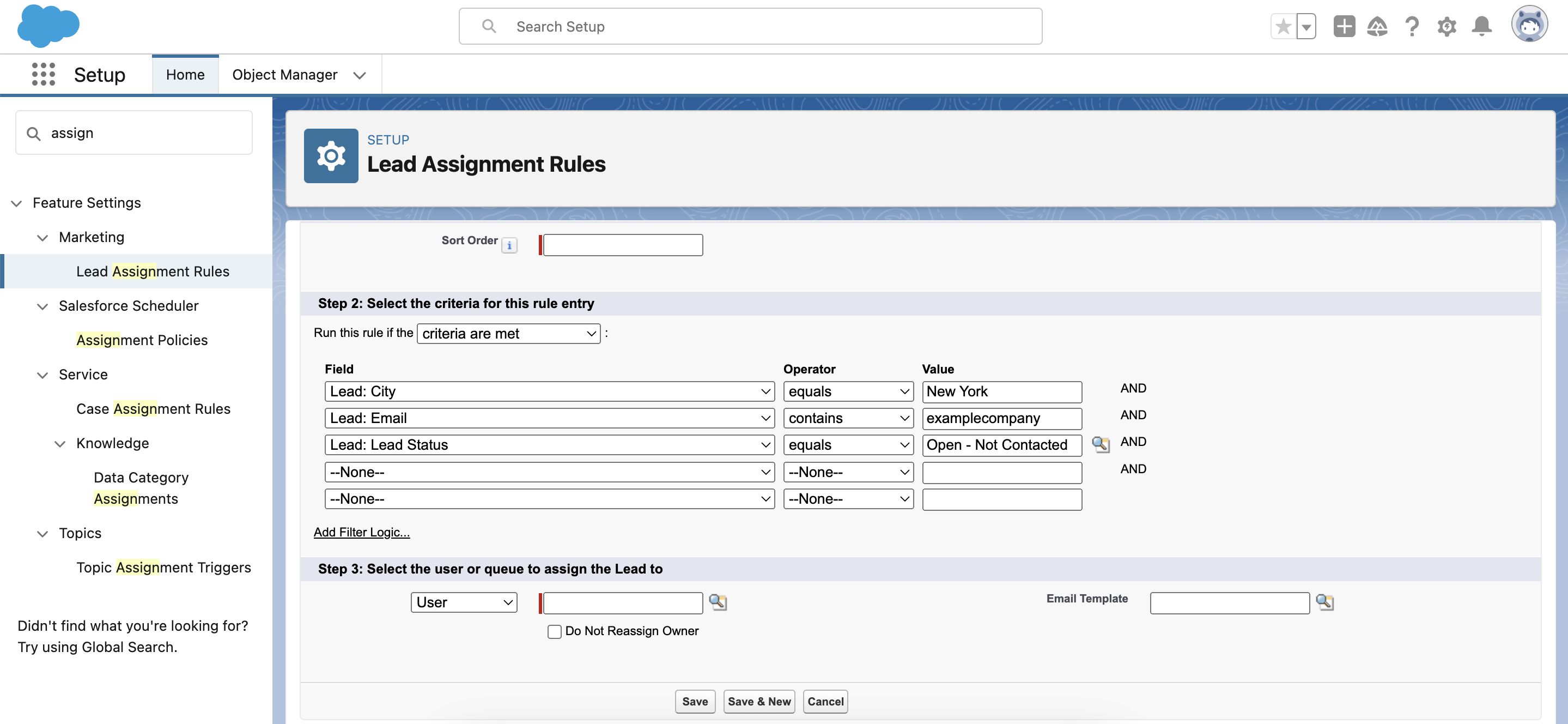
3. Lead Assignment Rule Creation
To create Lead Assignment Rule:
- Navigate to Setup in your Salesforce organization
- Start typing Assignment Rules in the Quick Find box and select Lead Assignment Rules
- Click the New button
- Specify the lead assignment rule name
- Do not forget to check the Activate box
- In the Rule Entries section, choose New
- Specify the order in which the rule entry will appear
- Define the criteria for the given rule entry. For example:
- Lead:City = New York
- Lead:Email = examplecompany
- Lead: Lead Status = Open – Not Contacted

- Select a User or a Queue for this lead assignment
- Choose an email template
- Click Save
- Test your rule. Create a test Lead (manually or via Web-to-Lead) and verify Record Owner and notification emails
When to Use Round-Robin?
Round-robin is a record distribution method where incoming leads or cases are assigned sequentially and evenly among a group of users in rotation (one after another, then repeating the cycle).
Round-robin is ideal when:
- Sales reps should receive leads evenly
- No single rep should be overloaded
- You want fair distribution
You can implement this with structured rule entries or automation tools.
Tips and Tricks for Creating Assignment Rules in Salesforce
- Always test in Sandbox
Test your assignment rule in a sandbox before running it on your production org. This allows you to validate routing logic, notifications, and edge cases without risking data errors or workflow disruptions in production. - Use formulas only when truly necessary
Leverage custom formula fields to simplify complex assignment rules. This might be the case if you need to enlist the states by region. Overusing formulas can make rules harder to understand and maintain for future admins. - Use the round-robin approach
Set up round robin assignment rules for avoiding bottlenecks in your work routine. It means that the system will allocate each new case or lead to a different user or a queue until everyone has been assigned the same amount, and the process repeats. - Implement a fallback (catch-all) entry
Consider a final rule entry with no criteria. This ensures that every Lead or Case is assigned, even if it doesn’t match earlier criteria. - Document your rule logic and maintain a change log
Clearly record the purpose, structure, and expected outcome of each rule, and track all changes (who modified what and when) to ensure transparency, easier troubleshooting, and safer future updates. - Periodically audit rule performance
Regular audits help identify bottlenecks, uneven distribution, or outdated logic that may affect team efficiency.
Bottom Line
Hopefully, we managed to unscramble the assignment rules in Salesforce for you. They help you create structured, automated routing for leads and cases. The result? Faster response times, improved ownership clarity, and consistent record distribution. Just imagine how sleek and error-free your work can be! Newly created leads and cases are assigned to an appropriate team member or queue, no chaos.
If you need help setting up, auditing, or optimizing assignment rules, contact our team. We can support you with any Salesforce configuration, automation strategy, and technical maintenance.
FAQ
1. How to Create Assignment Rules in Salesforce?
To create assignment rules in Salesforce, you have to log into your Salesforce org, find Setup. In the Quick Find box, type in Assignment Rules, select it, and click New. Define Rule criteria (name, object, active), add evaluation criteria, assign records, and save.
2. How Many Assignment Rules Can be Active in Salesforce?
You can create multiple assignment rules, but only one assignment rule per object (Lead or Case) can be active at a time. However, that active rule can contain multiple rule entries with different criteria.
3. What is the difference between Lead vs Case Assignment Rules?
Lead Assignment Rules distribute prospects to sales reps or queues.
Case Assignment Rules distribute support requests to service agents or queues.
Both automate routing but apply to different objects.
4. Can assignment rules assign to a queue?
Yes. Assignment rules can assign records to either a User or a Queue, depending on your business needs.