
Data Access & User Permissions in Experience Cloud Sites
Last Updated: March 6, 2026
Salesforce Experience Cloud brings together customers, partners, and employees in a single digital space. But that convenience comes with a challenge: different user types need access to very different data, and some of that data is highly sensitive.
Without well-structured Experience Cloud user permissions, you risk exposing confidential records to the wrong users or creating so many restrictions that legitimate users can’t get their work done. Both outcomes are costly.
By the end of this blog post, you will understand:
- The four levels of data access in Salesforce and how they interact
- How profiles and permission sets work, and when to use each
- How to manage access for both authenticated and guest users
- Best practices to keep your site secure and audit-ready
Let’s start from the foundation.
Data Access Levels in Salesforce
Data access and user permission management are an important part of any Salesforce Experience Cloud site. Without proper organization, users may struggle to access the data they need; or they have too much access to data that isn’t relevant to their job. Before discussing the most effective methods for managing Experience Cloud user permissions and data access within Salesforce, it’s important to know about the various levels of data access available in Salesforce. This will help you understand how the security system works within the platform.
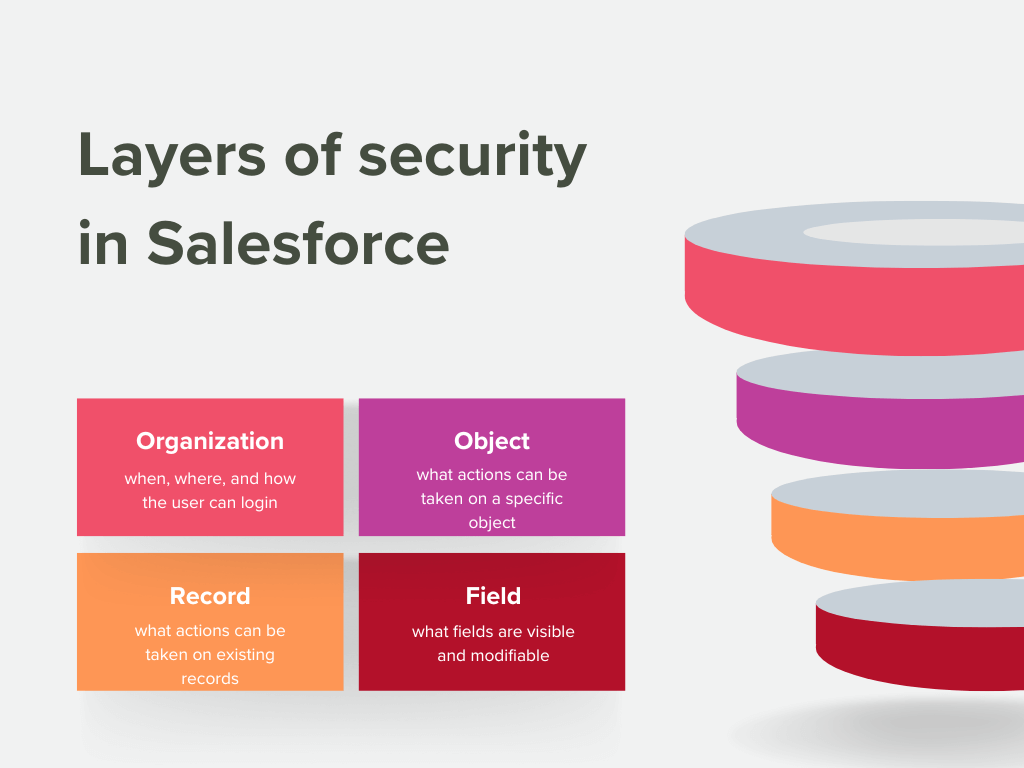
Salesforce uses a layered security model. Think of it as concentric gates: each layer narrows down who can see or do what.
1. Organization Level
This is the outermost layer. It controls who can log in to your Salesforce org at all. Settings include:
- Password policies (length, complexity, expiry)
- IP restrictions (trusted IP ranges, login IP whitelisting)
- Session settings (timeout duration, session security level)
- Login hours (restricting access to business hours by profile)
2. Object Level
Once inside the org, object-level security in Salesforce determines what a user can do with each object (e.g., Accounts, Cases, custom objects). Permissions are set as CRUD + tab visibility:
- Create, Read, Edit, Delete — each toggled independently per object
- Tab visibility — whether an object tab is visible in the navigation
Object-level permissions are configured in profiles and permission sets. If a user’s profile doesn’t grant Read on Cases, they simply won’t see case records, regardless of sharing rules below.
3. Record Level
Even if a user can access an object, Salesforce record-level security controls which specific records they see. This is managed through:
- Organization-Wide Defaults (OWD) — the baseline sharing posture (Private, Public Read Only, Public Read/Write)
- Role Hierarchy — users higher up inherit visibility of records owned by users below them
- Sharing Rules — automated rules that open up access based on criteria or ownership
- Sharing Sets — used specifically in Experience Cloud to grant guest/community users access to records related to them (e.g., their own cases)
- Manual Sharing — one-off record sharing by a record owner or admin
4. Field Level
Field-Level Security in Salesforce (FLS) is the innermost control. Even if a user can see a record, specific fields can be hidden or made read-only. For example, you might show a contact record to a partner user but hide the internal rating field.
Quick Tip
How these layers work together: Imagine an object is visible to a user (object level: Read), but OWD is set to Private and there is no sharing rule covering that user. The user won’t see any records. Add a sharing rule, and now they see the record, but if the field is hidden via FLS, that specific field still won’t appear. All four layers apply simultaneously.
How Do You Manage User Permissions in Salesforce Experience Cloud?
In Experience Cloud, permissions are primarily managed through two tools: profiles and permission sets. They work together: profiles define the baseline, permission sets extend it.
Profiles
A profile is a collection of settings and permissions that defines what a user can see and do as their baseline. Every user must have exactly one profile. Common Experience Cloud profiles include:
- Customer Community User — standard external user, typically read/limited write
- Customer Community Plus User — more access, supports role hierarchy
- Partner Community User — designed for partner portal use cases
- Guest User — unauthenticated visitors (more on this below)
Pros: Efficient for managing a large group of users who all share the same base access. Change the profile once and all assigned users are updated.
Cons: Inflexible for individual exceptions. If one user needs more access than others with the same profile, you either change the whole profile (risky) or use a permission set.
Permission Sets
A permission set grants additional access on top of a user’s profile. Users can have multiple permission sets. They are ideal for:
- Giving a subset of Community Users access to a specific object (e.g., Knowledge Articles)
- Unlocking a field that’s hidden in the baseline profile
- Enabling a feature or app access for a specific team
Example: Your Customer Community User profile has no access to the custom ‘Warranty Claims’ object. Instead of creating a new profile variant, create a permission set called ‘Warranty Access’ with Read + Create on that object, and assign it only to users who handle warranty requests.
Quick Tip
Permission Set Groups allow you to bundle multiple permission sets and assign them together. It’s useful for complex role-based access patterns without proliferating individual permission sets.
Permission Set vs Profile in Salesforce: What Should You Choose?
| Criteria | Profile | Permission Set |
|---|---|---|
| Granting extra access without changing the profile | All users of a given type | Specific users only |
| Scope | Broad baseline permissions | Narrow, targeted additions |
| Number per user | One profile only | Multiple allowed |
| Best for | Defining user type access | Granting extra access without changing profile |
| When to change | When baseline access changes for all | When an individual or group needs more |
General rule: keep profiles minimal and use permission sets to extend access. This approach is safer, more auditable, and easier to manage over time.
Permission Sets vs Profiles Salesforce: A Practical Migration Guide

How Do You Control User Access to Your Experience Cloud Site?
Experience Cloud sites can be accessed in two ways: by logging in as an authenticated user or accessing the site as an unauthenticated, or guest user.
Access for Authenticated Users
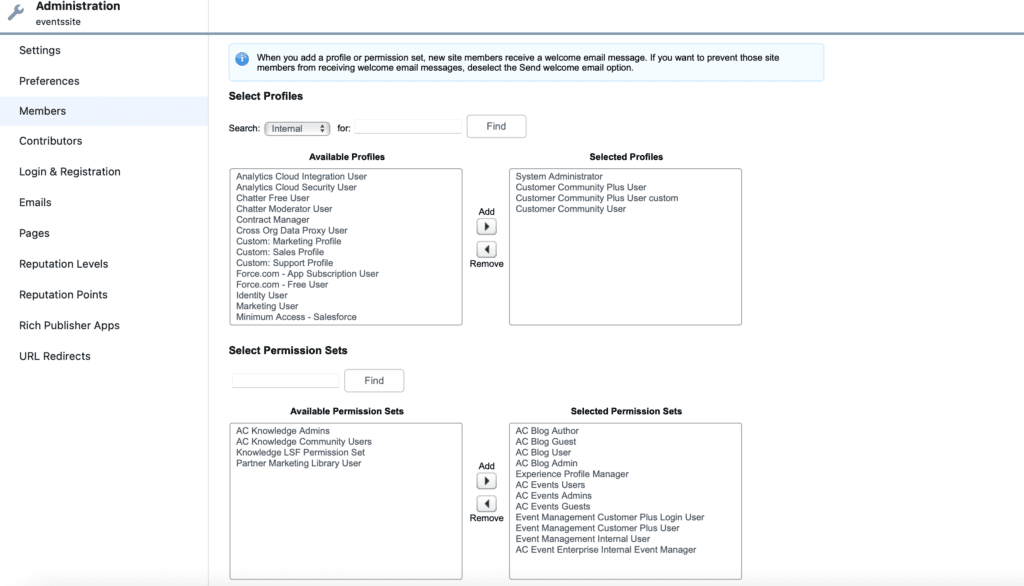
Access to an Experience Cloud site for logged-in users is controlled through site membership. During setup, an admin assigns profiles and/or permission sets to the site. Only users with those profiles or permission sets can access the site.
Where to configure: In Experience Builder, go to Administration → Members. Add the relevant profiles and permission sets that should have site access.
Quick Tip
Start with the minimum required profile and use permission sets to extend access to specific pages, objects, or features. This gives you fine-grained control and makes access audits much simpler.
Adding a profile to site membership does not automatically expand object or record access. Membership controls whether a user can reach the site. The profile and permission set still govern what they can see and do inside it.
Guest User Permissions
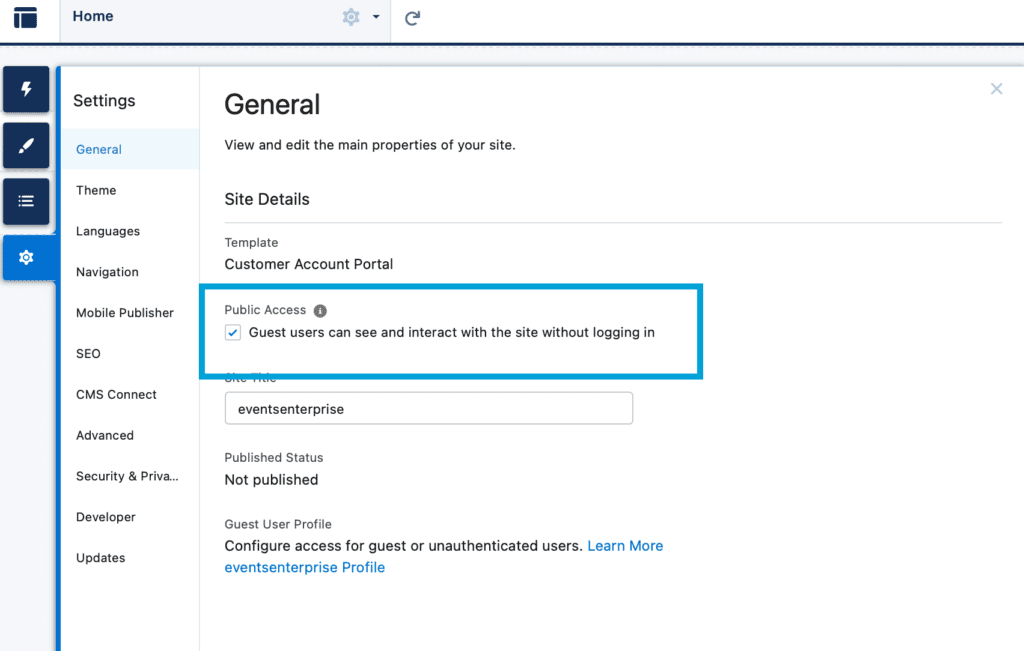
Guest users are unauthenticated visitors. It can be anyone who accesses your Experience Cloud site without logging in. They are useful for public-facing pages: knowledge bases, contact forms, login pages, product listings, and similar content.
Every Experience Cloud site has a single Guest User profile. This profile applies to all unauthenticated sessions. Because you have no control over who a guest user is, the guiding principle here is simple: grant only the minimum access necessary.
What to control for Salesforce Experience Cloud guest user permissions:
- Object access: Enable only the objects they genuinely need to interact with
- Record visibility: Use sharing rules or guest user sharing to expose specific records (e.g., published Knowledge Articles)
- Field visibility: Use FLS to hide sensitive fields even on accessible objects
- CRUD restrictions: Guest users should almost never have Create, Edit, or Delete on objects with sensitive data
As of Summer ’20, Salesforce requires guest user record access to be granted explicitly via sharing rules or sharing sets. OWD settings no longer automatically grant guest users access to records, even on Public objects. Always verify your sharing rules cover the use case.
Common Mistakes with Guest Users
These are the errors most frequently seen in Experience Cloud security audits:
- Leaving object CRUD too broad
Guest users with Create or Edit access on objects like Contacts or Leads can create junk or spam data at scale. - Exposing fields via FLS gaps
The object is correctly restricted, but sensitive fields on accessible objects are still visible because FLS was not reviewed. - Not auditing guest user page access
Pages accessible without login can leak data if their underlying components query records without proper filtering. - Using the Guest profile for internal workarounds
Some admins temporarily relax guest permissions to fix a bug, and forget to revert. - No sharing rules defined
Guest users get zero record access by default in modern orgs. If your public pages return empty lists, a missing sharing rule is often the cause.
Top 5 Best Practices for Securing Data Access in Your Experience Cloud Site
In this section, we share valuable advice on how to ensure the security of your Experience Cloud site. We will go over the 5 Experience Cloud security best practices to consider to safeguard your data. Let’s dive in.
Regularly Review and Update User Permissions
User roles change. Employees leave. Partners get upgraded. Establish a quarterly review cycle to check that profiles and permission sets still reflect current needs. Remove permission sets that are no longer relevant. Pay particular attention to users who changed roles internally. They may have accumulated permissions they no longer need.
Keep Your Experience Cloud Site and Add-Ons Up-to-Date
Outdated managed packages, unpatched AppExchange apps, and stale Lightning components are common attack vectors. Enable auto-updates where possible, and run Salesforce’s Security Health Check (Setup → Security → Health Check) on a regular basis.
Monitor and Audit User Activity
Use Salesforce’s Event Monitoring (available in Enterprise and above) to track login activity, record views, data exports, and API access. Set up login and field audit trail history for sensitive objects. For Experience Cloud specifically, pay attention to guest user traffic patterns. Unusual spikes may indicate scraping or abuse.
Limit the Data That Guest Users Can Access
Apply the principle of least privilege strictly to the guest profile. Define explicit sharing rules for each object type you need to expose. Review the guest profile FLS for every object it can access. Never use the guest profile as a shortcut to expose data that should require authentication.
Train Your Employees on Security Best Practices
Technology controls only go so far. Train admins on the risks of over-permissioning. Make sure community managers understand what guest users can and cannot access. Document your permission model so that new team members follow the same standards. A well-documented org is a more secure org.
Advanced Communities is Here to Help!
Managing permissions, sharing rules, and guest user access in Experience Cloud can be complex, especially as your site grows and user types multiply. A misconfigured profile or an overlooked sharing rule can have real consequences.
Advanced Communities specializes in Salesforce Experience Cloud implementation, security audits, and access model design. Whether you need a full permissions review, help setting up a new site from scratch, or guidance on a tricky guest user configuration, our team has seen it all.
Get in touch today. Book a call to discuss how we can help you build a secure, well-structured Experience Cloud site.
FAQ
1. How to control user access in Experience Cloud?
There are different options of controlling user access in Experience Cloud. First, through specifying user profiles (for customers, partners, and employees). Second, by assigning permissions to each profile. Third, by establishing a role hierarchy and sharing rules. Last but not least, you can implement manual sharing.
2. How can I prevent users from sharing sensitive data within my Experience Cloud community?
By implementing granular sharing rules that restrict access to sensitive data based on criteria like record type, ownership, or specific fields. Besides, you can grant access to specific sets of records or features based on entitlements, limiting visibility to authorized users. You can also group permissions together into sets and assign them to profiles or individual users, ensuring that users only have access to the data they need.
3. What is the difference between profiles and permission sets in Experience Cloud?
A profile is the baseline set of permissions that every user must have. One profile per user. It defines their fundamental access level (what objects, tabs, and features they can interact with). A permission set extends access beyond the profile for specific users, without changing the profile itself. You can assign multiple permission sets to a single user. Best practice is to keep profiles minimal and use permission sets for any access that is not universal to a user type.
4. How do I secure guest user access in Experience Cloud?
Start by reviewing the Guest User profile and removing any object or field permissions that are not strictly necessary. Define explicit sharing rules or sharing sets for every object type you need to expose to unauthenticated visitors. Guest users have no record access by default. Restrict CRUD to Read-only (or no access) for all sensitive objects. Regularly audit the guest profile after any site changes or new feature deployments, as new components can inadvertently introduce data exposure.