
How to Set Up Multi-Factor Authentication in Salesforce and Experience Cloud
Last updated: February 17, 2026
With cyber threats evolving, Salesforce admins, IT teams, security officers, and Experience Cloud owners need practical guidance to protect their orgs. Multi-Factor Authentication (MFA) is now a baseline requirement for internal users and an important option for external users to secure sensitive data.
For Experience Cloud sites, MFA is not only an internal security setting. It can affect how customers, partners, members, employees, and community users access sensitive portal data, self-service resources, cases, Knowledge Articles, documents, and business records.
A secure MFA setup should be planned together with user roles, login flows, permission sets, profiles, SSO, and the overall Experience Cloud access model.
In this guide, you’ll learn:
- How Salesforce MFA works and why it matters for your org
- Who needs MFA and under which login scenarios
- Step-by-step instructions to enable MFA for internal and Experience Cloud users
- Recommended verification methods and practical considerations
Who needs Multi-Factor Authentication in Salesforce (and when)?
Who needs MFA in Salesforce depends on how users log in (directly, through SSO, or via an Experience Cloud site) and on their license type, since different licenses can have different MFA requirements and available verification methods. There are criteria for different types of users:
Internal users
- All users with standard Salesforce licenses accessing the org directly
- Users logging in via Employee Communities or internal Experience Cloud sites
- Admins and key stakeholders who handle sensitive data
- Applies to both direct UI logins and supported SSO scenarios (unless MFA is enforced at IdP level)
External users / Experience Cloud users
- Community users with Community, External Identity, or Employee Community licenses may optionally use MFA
- External users’ MFA depends on site setup, license, and business requirements
- Admins can assign MFA via permission sets to selected users
For external users, MFA decisions should be based on the type of portal, the sensitivity of the data, the user journey, and the login method. A partner portal with deal registration, a member portal with profile and payment data, and a public support community may require different authentication and access strategies.
If you use SSO
- MFA can be enforced at the Identity Provider (IdP) level
- Direct UI logins to Salesforce still require separate MFA configuration
It’s worth mentioning that email, SMS, or voice-based verification can be less secure than other MFA methods and may not always meet compliance requirements if used as the primary factor, and relying on them alone is not recommended for protecting sensitive Salesforce data.
What is MFA in Salesforce?
As an advanced authentication approach, multi-factor authentication in Salesforce ensures secure access by verifying users’ identities through the provision of multiple pieces of evidence, typically two or more factors, during the login process.
One of the factors entails knowledge-based information like a username and password. Additional factors encompass possession-based elements like an authenticator app or a security key. By combining these multiple factors, Salesforce MFA enhances security and provides a robust defense against unauthorized access attempts.
MFA has been required since February 1, 2022 for all Salesforce internal users as part of contractual obligations. The exact requirements and setup may differ depending on whether your org uses direct UI logins, Single Sign-On (SSO), or the user’s license type. Below, we outline how to ensure compliance across different scenarios.
Why MFA Matters for Experience Cloud Portals
In Salesforce Experience Cloud implementation, authentication directly affects the security and usability of external-facing portals. A portal may give users access to cases, documents, Knowledge content, partner resources, member profiles, renewals, payments, or other sensitive records.
- For customer portals, MFA can help protect self-service accounts and support data.
- For partner portals, it can protect deal information, enablement materials, files, and program
resources. - For member portals, it can help secure member profiles, subscription data, event
access, and private community content.
That is why MFA should be planned as part of the overall portal access strategy, not treated as an isolated admin checkbox.
Types of Multi-Factor Authentication Verification Methods
Salesforce offers several ways to verify a user’s identity, but not all methods are created equal. Here’s a breakdown of the most reliable options:
Recommended MFA methods
- Built-In Authenticator. Integrated authenticators utilize biometric readers, such as fingerprint sensors, iris scanners, or facial recognition technology. They are embedded within a user’s device to authenticate their identity. Examples of these authenticators include Touch ID, Face ID, or Windows Hello.
- Salesforce Authenticator mobile app. With this reliable solution, users can strengthen their login process by using their mobile device in addition to their password to verify logins. By utilizing the Salesforce Authenticator app, users receive a push notification on their mobile device, and can conveniently verify their logins with a simple tap response.
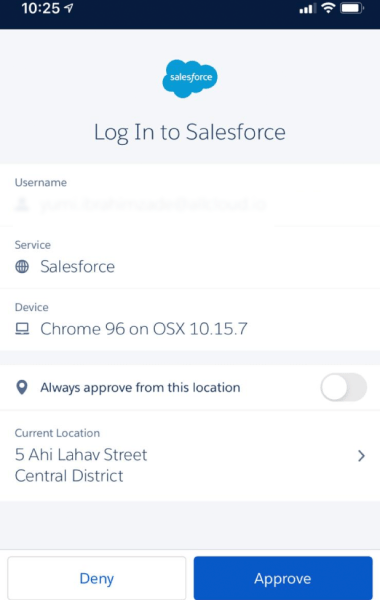
Salesforce authenticator setup
For a visual demonstration of how to use Salesforce Authenticator app for MFA logins, you can refer to this video guide:
- U2F or WebAuthn security keys. You can enable users to utilize a Universal Second Factor (U2F) or WebAuthn (FIDO2) security key when prompted to verify their identity. This allows users to forgo methods like Salesforce Authenticator or one-time passwords delivered via email or SMS. Instead, they can simply insert their security key into the designated port on their computer or mobile device to successfully complete the verification process.
- Third-party time-based one-time passcode (TOTP) authenticator apps. These apps generate random, temporary verification codes based on the appropriate algorithm. The user gets this code on the phone or email. After, they need to type it into a specific field while logging in.
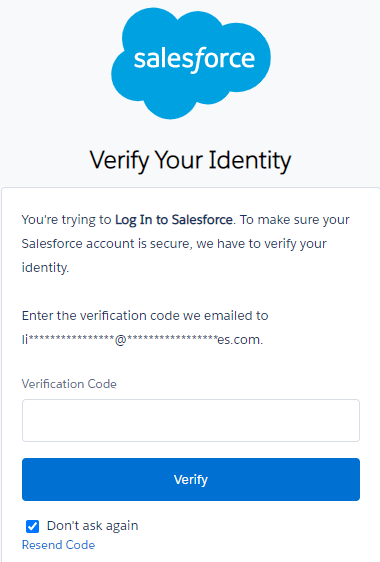
*This is Identity Verification, not the same as strong MFA methods used for compliance. Use it as an additional verification step
You can enhance your expertise in multi-factor authentication (MFA) in Salesforce directly on Trailhead. A dedicated Super Badge Unit is available at any time, offering a practical way to deepen your skills and strengthen your proficiency in MFA.
What we don’t recommend as a primary factor: уmail codes, SMS OTPs, and voice calls. They are considered less secure and may not meet some compliance requirements. They can be used as fallback or supplemental verification, but not as a primary method.
How to Enable MFA in Salesforce
With a single configuration, you have the ability to activate multi-factor authentication for all users within your org. Once it is enabled, internal users will be required to provide a secondary verification method when logging in with their username and password. This setting aligns with Salesforce’s plan to automatically enable and enforce this security mechanism.
This is what you need to do before you enable MFA:
- Identify pilot users or admins to test the rollout
- Confirm each pilot user has at least two verification methods available
- Communicate upcoming changes to affected users
- Check whether users log in via SSO or direct Salesforce UI
- Review license types to ensure MFA is supported
- Prepare fallback/backup processes to avoid lockouts
Here is a step-by-step guide on how to setup MFA in Salesforce for all internal users in the org as of 2026:
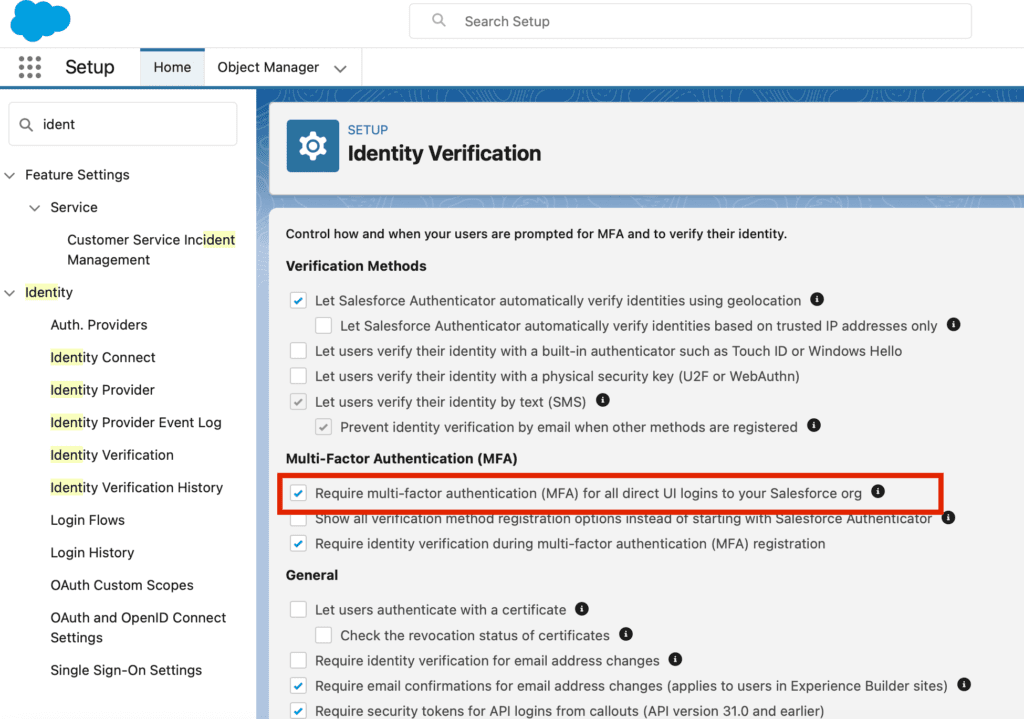
- Navigate to the Setup menu and enter “Identity” in the Quick Find search box. Then, choose the option for “Identity Verification.”
- From there, in the multi-factor authentication (MFA) section, select the checkbox that says “Require multi-factor authentication for all direct UI logins to your Salesforce org.”
3. Confirm strong methods are allowed in your org. Go to Setup → Identity Verification. Check the Verification Methods section and make sure secure methods such as Salesforce Authenticator, TOTP authenticator apps, or security keys (WebAuthn/U2F) are enabled, and that weaker options like email or SMS are not configured as primary methods.
4. Verify what users can enroll in. Open Setup → Profiles or Permission Sets assigned to your users and confirm they include MFA permissions and don’t restrict authenticator or security key registration.
If a user can’t see a strong method during setup, it’s usually due to permission restrictions or org-level settings.
5. Test the experience. Log in as a test user (or use a sandbox) and go through the verification prompt to ensure strong methods appear and work as expected. This step confirms not just configuration, but actual usability for end users.
Enable MFA in Salesforce Experience Cloud
Multi-factor authentication in Experience Cloud is configured differently depending on whether users access the site as internal staff or external community members. Understanding how MFA applies to each audience helps ensure consistent security while avoiding configuration gaps.
For internal users accessing Experience Cloud
Internal users authenticate through Salesforce in the same way they do for standard org access, so MFA enforcement follows your organization’s existing security policies. Once MFA is enabled at the org level and supported by the appropriate permission sets, it automatically applies when internal users access Experience Cloud.
For external Experience Cloud users
MFA for external users depends on the license type and how the site’s authentication settings are configured. To require secondary verification, administrators must assign MFA-related permission sets and ensure the selected community or identity licenses support MFA capabilities. External users can be identified based on the following types of licenses:
- Community licenses
- External Identity licenses
- Employee Community licenses (consisting of either a Salesforce Platform license paired with a Company Community for Lightning Platform permission set license or a legacy Company Community license)
Salesforce MFA is not required for external users who have been issued non-community licenses by Salesforce or a Salesforce partner specifically for accessing employee or other communities.
It’s important to note that multi-factor authentication is required for internal users, which includes anyone with a standard user license, when logging into your company’s Employee Community or other Experience Cloud sites.
Permission Sets vs Profiles Salesforce: A Practical Migration Guide

Want to create an online community with Salesforce Experience Cloud and thinking about enabling multi-factor security mechanism for your site users? Use MFA user permission to enable multi-factor authentication for external users accessing your company’s Experience Cloud sites, employee communities, and other types of community portals.
MFA for community users step-by-step
To require stronger identity verification for community members, you need to enable MFA at the permission level and assign it to the appropriate users. For this:
- Create a permission set for multi-factor authentication. From Setup enter Permission in the Quick Find box.
- Select Permission Sets > Click New > Label the permission set.
- Use the auto generated API name > Click Save.
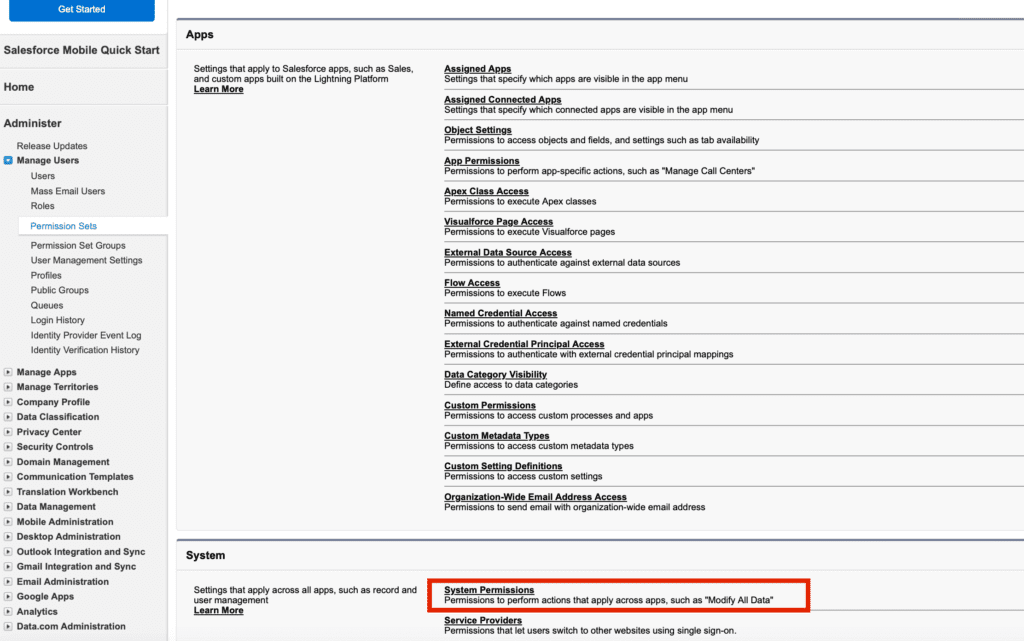
- Under System, click System Permissions.
- Click Edit > Select Multi-Factor Authentication for User Interface Logins > Click Save.
- Assign the MFA Permission set to the appropriate users.
You can’t assign the Multi-Factor Authentication for User Interface Logins permission to users with the Salesforce Limited Access – Free license.
SMS as a Verification Method for Multi-Factor Security Mechanism in Experience Cloud Sites
SMS-based MFA is weaker than app- or key-based methods and should not be your primary verification option whenever stronger factors are feasible. However, it can still be used for external users in specific setups where authenticator apps or security keys are not practical:
- Suitable for external users who cannot use authenticator apps or security keys
- Consider SMS only as a fallback or registration method. Strong MFA is preferred
- Requires Identity Verification Credit Add-On and enabling “Let external users verify via SMS” in profiles/permission sets
If you enable SMS one-time passcodes as the multi-factor authentication verification method on your Experience Cloud site, users will only be able to choose this method during the initial registration. Once registered, users can easily add any other supported verification method to their account through the Advanced User Details or Personal Information page. In the case where multiple verification methods are linked to a user’s account, Salesforce automatically utilizes the most secure method available for multi-step login mechanism.
How to Use SMS as a Verification Method?
To enable SMS multi-factor authentication, you will require an Identity Verification Credit Add-On license. It is also necessary to reach out to Salesforce Customer Support in order to activate this feature. Additionally, you need to enable the option “Let external users verify their identity by text (SMS)” on profiles and permission sets.
Because one-time passcodes delivered via text messages are less secure than other verification methods, this option is only available for external users.
MFA for Customer, Partner, and Member Portals
The right MFA approach depends on the type of Experience Cloud site and the users who
access it.
- For customer or support portals, teams should consider whether users access cases, personal information, support history, documents, or Knowledge content that should be protected with stronger authentication.
- For partner portals, MFA may be an important part of Salesforce Partner Cloud implementation when partners access leads, opportunities, deal registration, pricing materials, enablement content, or private program resources.
- For member portals, authentication planning is important when users manage profiles, renewals, subscriptions, event registrations, payments, certificates, or private community content, all with Salesforce-native membership management.
The goal is to balance security and usability. Strong authentication should protect sensitive data without creating unnecessary friction for low-risk portal interactions.
Common MFA Setup Risks and Best Practices
MFA configuration can create problems if it is enabled without reviewing the full user access model. Before rollout, teams should test how MFA works for different profiles, permission sets, license types, login methods, and Experience Cloud audiences.
Common risks include:
- Enabling MFA without testing the experience for external users
- Using weak verification methods as the primary option
- Forgetting about SSO or identity provider settings
- Applying the same setup to users with different risk levels
- Creating lockout risks for admins or key business users
- Not preparing fallback or recovery processes
- Assuming that internal Salesforce users and Experience Cloud users work the same way.
A good MFA rollout should include testing, user communication, backup methods, admin recovery planning, and a clear understanding of which users need stronger authentication based on their role and data access.
Need Help With Salesforce MFA and Experience Cloud Security?
If you need help setting up MFA for Salesforce or Experience Cloud users, Advanced Communities can support you with security configuration, user access planning, data access & user permissions in Experience Cloud sites, SSO considerations, and portal authentication setup.
Our team works with Salesforce Experience Cloud sites, customer portals, partner portals, support portals, and member portals. We can help you design an access model that protects sensitive data while keeping the login experience practical for your users.
Whether you are enabling MFA for internal users, external users, community users, or a mixed Salesforce environment, we can help you review the setup, avoid configuration gaps, and implement a more secure portal experience. Talk to a Salesforce Experience Cloud expert today.
Data Access & User Permissions in Experience Cloud Sites

FAQ
1. How do I know if Salesforce multi factor authentication is enabled? What Salesforce MFA settings do I need to configure?
Navigate to the Setup menu and enter “Identity” in the Quick Find search box. Then, choose the option for “Identity Verification.” Ensure that the “Require multi-factor authentication (MFA) for all direct UI logins to your Salesforce org” checkbox is selected.
2. How do I enable a multi-step login process for a specific user in Salesforce?
Do it by assigning them a user permission. Select the appropriate custom user profile or permission set. Assign the “Multi-Factor Authentication for User Interface Logins” permission to the profile or permission set.
3. Do all users need multi-factor authentication for Salesforce?
Salesforce requires multi-factor authentication (MFA) for internal users accessing Salesforce products, including logins through the user interface and partner solutions, to meet contractual security requirements. For external users (such as Experience Cloud or community users), MFA is optional and can be enabled based on your organization’s security policies and compliance needs.
4. What’s the difference between MFA and Identity Verification?
Multi-factor authentication (MFA) is a login requirement that uses two or more factors (something you know, have, or are) to confirm a user’s identity every time they sign in. Identity Verification in Salesforce is a risk-based, event-driven check (for example, when logging in from a new device or performing sensitive actions) and doesn’t necessarily require multiple factors on every login.
5. What’s the best MFA setup for admins (to avoid lockouts)?
Use at least two different MFA methods per admin (typically an authenticator app as the primary factor and a security key or backup authenticator as a secondary option) so access isn’t tied to a single device. It’s also smart to keep a secure backup access process (for example, a designated break-glass admin account with tightly controlled use) to prevent downtime if devices are lost or replaced.
6. Is MFA required for Experience Cloud users?
MFA requirements for Experience Cloud users depend on the user type, license, login method, and security setup. For external users, MFA may be configured based on the organization’s security policies and the sensitivity of the data users can access.
7. Why is MFA important for partner and member portals?
Partner and member portals may contain sensitive information such as profiles, documents, deal data, subscriptions, renewals, payments, or private resources. MFA can add an extra layer of protection for users who access this data.
8. What should be checked before enabling MFA for community users?
Before enabling MFA for community users, check license types, permission sets, login methods, SSO settings, backup verification methods, and the user experience for each audience group.
9. Can Advanced Communities help configure MFA for Experience Cloud portals?
Yes. Advanced Communities can help review your Experience Cloud access model, configure MFA, align permissions, test login flows, and improve security for customer, partner, support, or member portals.