
Getting Started with Experience Builder: How to Create Your First Page
We are excited to kick off a new series of posts that focuses on Salesforce Experience Builder for beginners. Whether you are new to the platform or have some experience, this series by Advanced Communities will guide you through the fundamentals of the Salesforce Experience Cloud.
Experience Builder is the drag-and-drop tool that lets you design and publish pages without writing a single line of code. It’s one of the most practical features in the Salesforce ecosystem, and once you get the hang of it, building custom pages becomes surprisingly straightforward.
This guide is built for Salesforce admins, consultants, and PMs who are just getting started. By the end, you’ll know exactly how to create your first page in Experience Builder, from choosing the right page type to dropping components onto the canvas and getting your layout just right. Let’s walk through it step by step.
What is Experience Builder?
At its core, Experience Builder is a powerful tool that enables you to design and develop your own custom site on Experience Cloud (formerly known as Salesforce Community Cloud) without requiring any coding knowledge. It gives you a visual interface to create, customize, and manage pages on your Experience Cloud site — no coding required.
Here’s where it comes in handy:
- Building customer portals, partner sites, help centers, and community pages
- Rearranging Lightning components on a page using simple drag-and-drop
- Customizing the look and feel of your site without involving a developer
Think of it as a flexible page editor, one that’s fully integrated with your Salesforce data, objects, and permissions. If you’re working with a Salesforce Experience Builder page for the first time, this is the tool you’ll be spending most of your time in.
Advantages of Using Salesforce Experience Builder
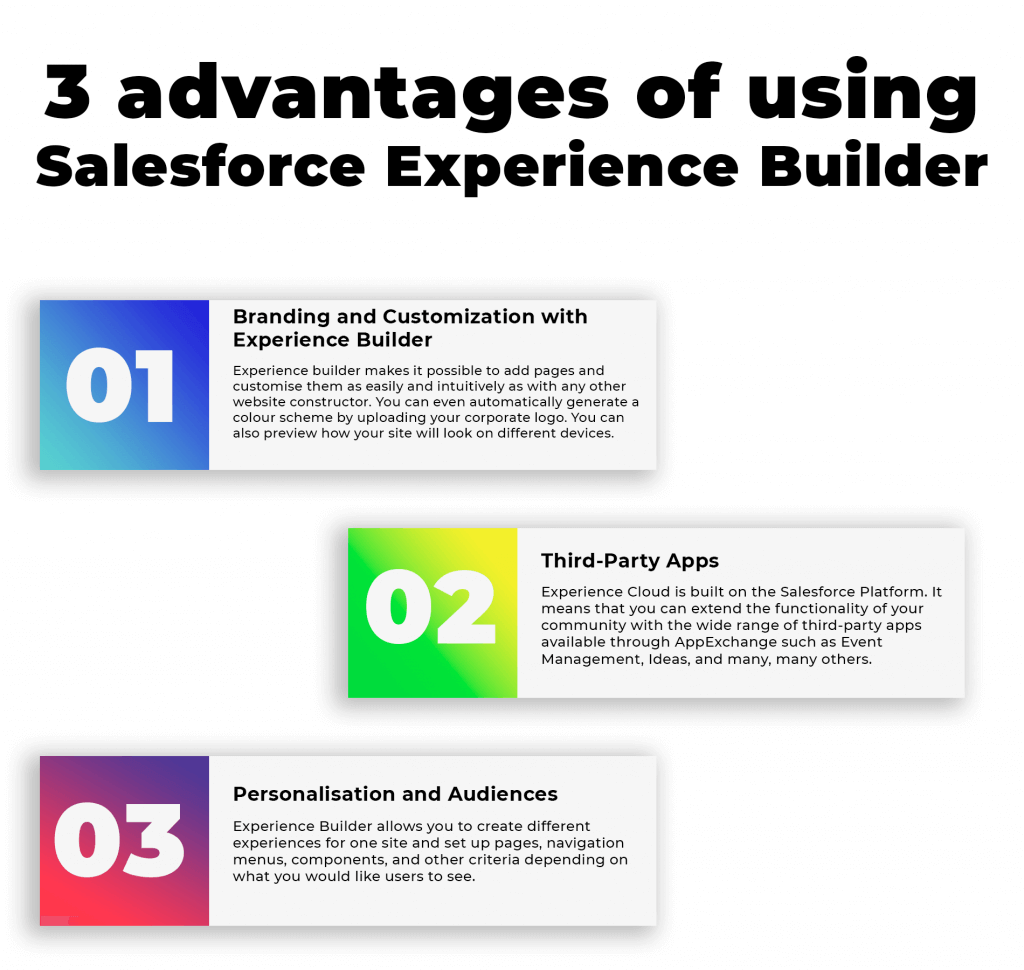
Salesforce Experience Builder delivers personalized experiences all over. Just look at the advantages coming along:
Flexible Customization
You can add pages and customize them the way you like. No coding is needed! Use the drag-and-drop logic, generate a color scheme for your pages by uploading your company logo, and preview your site on various devices.
Third-Party Apps
Any site template you choose for your site can support some additional functionality for your community. For example, you can comb through AppExchange and consider apps for event/knowledge/idea management and many others.
Personalization and Audiences
The Salesforce platform lets you create various experiences for one site by setting up page variations. This way, different audiences can see a different theme layout, Lightning components, and other elements. Everything will depend on the content you want your audiences to deal with.
2 Types of Experience Builder Site Pages
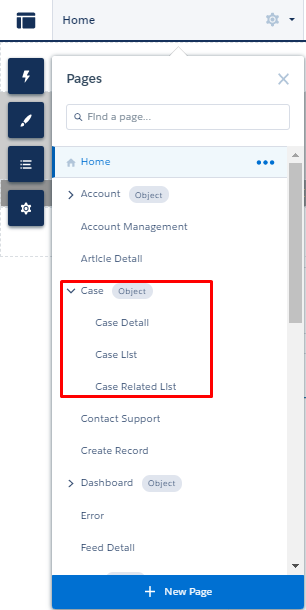
Before creating a new page, it’s important to understand the different types of pages available within the platform. In Experience Builder, all pages are displayed in the Pages menu and fall under two main categories: Object Pages and Standard Pages.
Object Pages
Object pages are designed to display data from specific Salesforce objects. When you create an object page, Salesforce automatically generates three page types for that object:
- List page — shows a list of records (e.g., all open cases)
- Detail page — shows the details of a single record (e.g., a specific case)
- Related list page — shows related records associated with a parent record
Use object pages when you want to display or interact with Salesforce records, for example, surfacing a list of knowledge articles or showing case details to portal users.
Standard Pages
Standard pages are the more flexible option. They’re not tied to a Salesforce object, which means you can use them for almost anything: landing pages, custom forms, blog-style content pages, event listings, or a home page.
When creating a standard page, you can choose from a pre-built layout or start with a blank canvas. You can also change the layout after the page is created.
Quick Tip
If you’re not sure which to pick, ask yourself: Does this page need to display Salesforce records? If yes, go with an Object page. If it’s a custom content page, choose Standard.
Salesforce Experience Builder Guide

Creating a Page on the Salesforce Experience Cloud Builder
Now for the core how-to. Here’s how to create your first page in Experience Builder, broken down into clear steps.
Step 1: Open Experience Builder
Log in to your Salesforce org and navigate to Setup → Digital Experiences → All Sites → Find your site → click Builder to launch Experience Builder.
Step 2: Open the Pages Menu
At the top of the Experience Builder interface, click the Pages menu. You’ll see all existing site pages listed here. Scroll to the bottom of the list and click New Page.

Step 3: Choose Your Page Type
You’ll be prompted to choose between a Standard page and an Object page. Refer to the section above if you’re unsure which to pick.
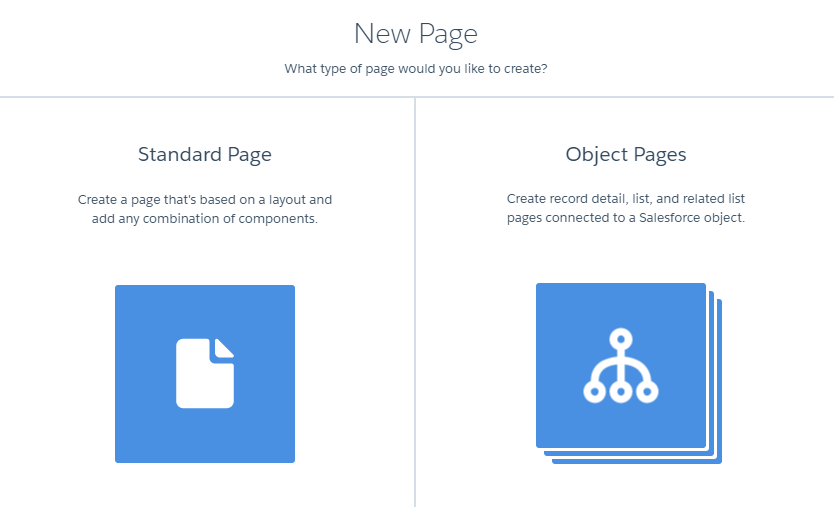
Important: Once you select an object page, Salesforce automatically creates List, Detail, and Related List pages for that object. You can’t undo this during the creation step.
Step 4: Select a Layout
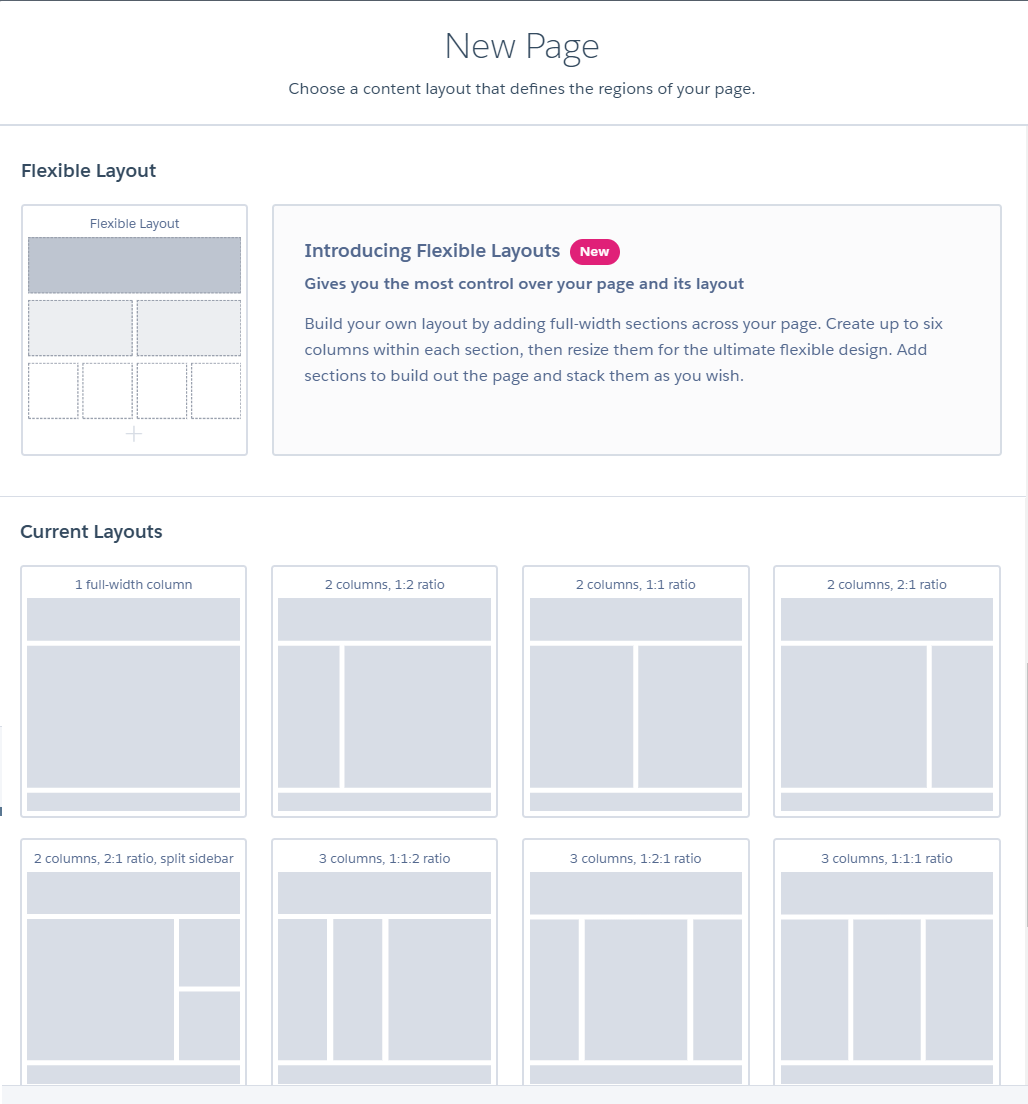
For Standard pages, you can select a pre-configured layout or start with a blank one right during creation. For Object pages, you’ll set the layout after the pages have been created.
Pick the layout that makes the most sense for your content. You can always change the layout of a Standard page later if you need to restructure.
Step 5: Add Components with Drag and Drop
Once your page is created, you’ll land on the canvas. Open the Components tab on the left panel. There you’ll find both standard Lightning components and custom ones, organized by category.
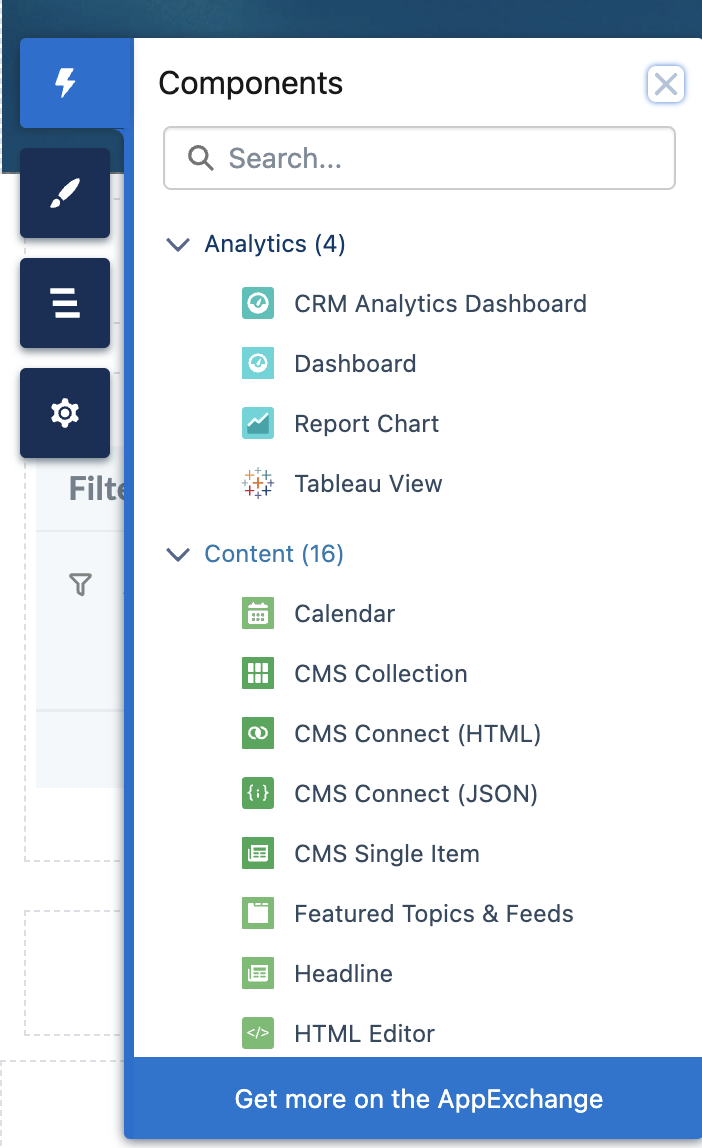
Just drag and drop components from the panel onto your page. For example, the Rich Text Editor component lets you add formatted text, images, videos, or links. If you need something more specific, like event listings or member directories.
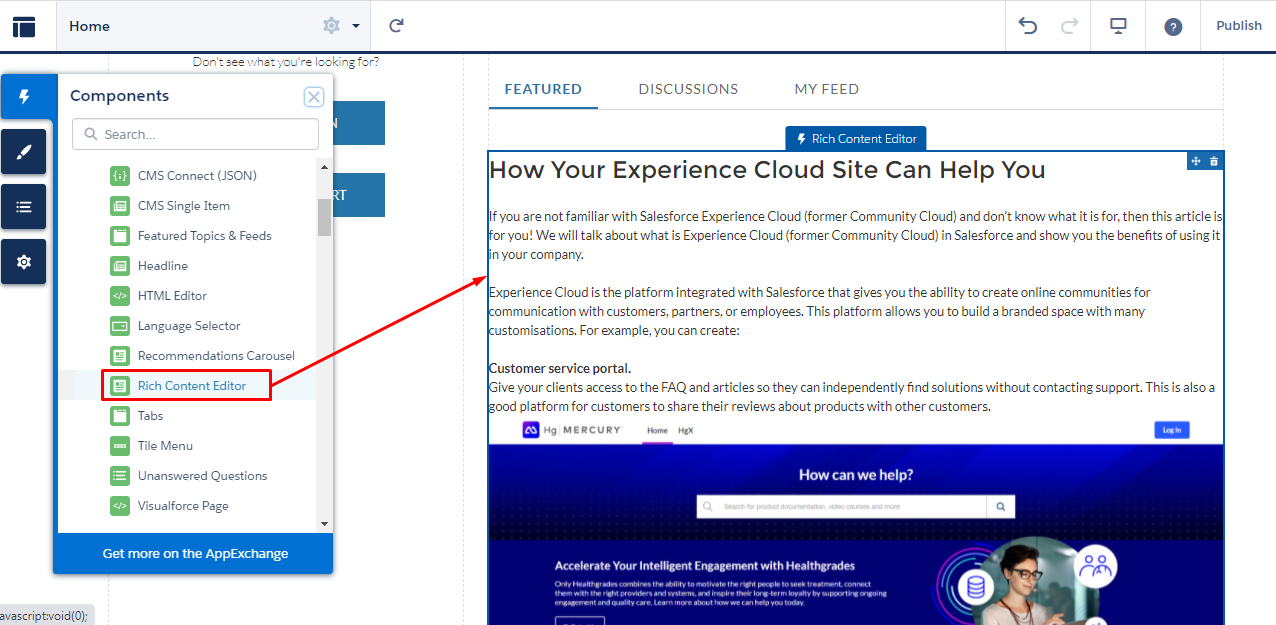
You can find additional components on AppExchange by clicking Get more on the AppExchange at the bottom of the Components menu.
For example, say you want to add event management functionality to your page. You can easily drag and drop components from the AC Events Enterprise app onto your page, giving you access to a comprehensive suite of features like online and offline event creation, package management, speaker management, and integration with Google Maps, Zoom, Stripe, and your Google Calendar.
Choose the component from the components list and drag-and-drop it to the page:
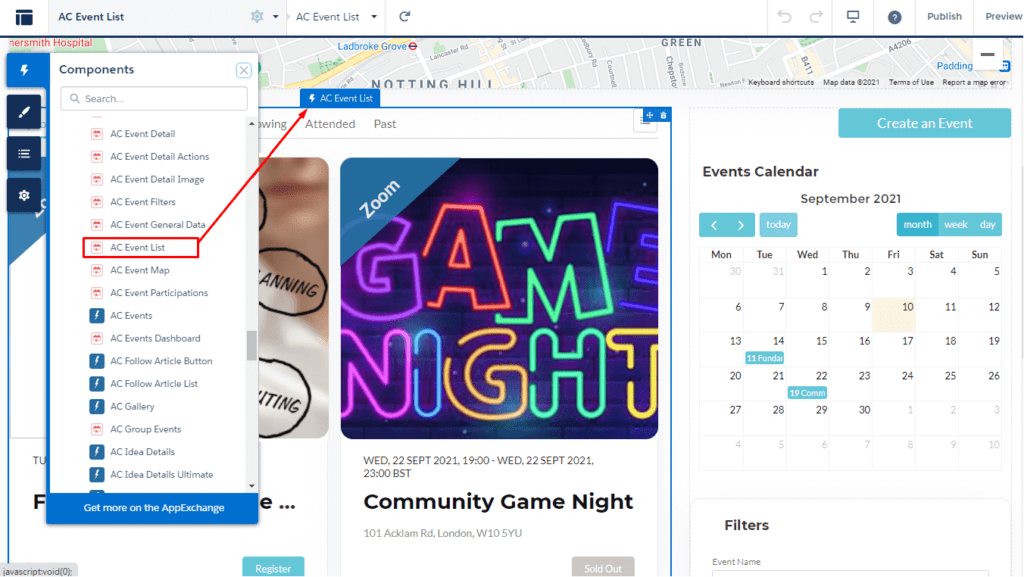
Once a component is on the canvas, click it to configure its properties in the right panel. Most components are highly customizable right there in the UI.
Step 6: Preview and Publish
Before going live, use the Preview button at the top right corner to check how your page looks across different devices. Once you’re satisfied, click Publish. Your new page will be live on the site.
Helpful Tips for Beginners
- You can rename a page anytime via its settings in the Pages menu — this won’t break its URL if you haven’t published yet.
- To switch between pages in Experience Builder, use the Navigation menu at the bottom of the Builder window — just select the page you want from the list.
- If your components look out of place, check the Experience Builder page layout first. An incompatible layout can restrict where components can be placed.
Need Help with Your Salesforce Experience Cloud Site?
If you’re running into issues while setting up pages in Experience Builder, or you need to install and configure AppExchange apps on your Experience Cloud site, it’s worth getting support from people who work with this platform every day.
Advanced Communities is a Salesforce partner with deep expertise in Experience Cloud site development and configuration. Whether you need to improve an existing portal, launch a new community, or find the right AppExchange solution for your use case, our team can help you move faster and avoid common pitfalls.
In addition, we provide different Salesforce-native solutions to improve the functionality of your Experience Cloud sites to meet your specific business requirements. Whether you’re looking for a powerful ideas management solution, Salesforce knowledge management tool, or member management software for your Salesforce PRM, support portal, or membership portal, we’re here to help you with all your Salesforce Experience Cloud needs. So do not hesitate and drop us a line!
FAQ
1. How to create a new page in Experience Builder Salesforce?
Go to Setup → Digital Experiences → All Sites → Select your site → Builder → Pages → New Page. From there, choose between a Standard page or an Object page, pick a layout, and start adding components.
2. How do I switch between pages in Experience Builder?
In the Navigation menu at the bottom of the Builder window, select the page you want to navigate to. It takes just a couple of clicks.
3. Can I change the page layout after it’s been created?
For Standard pages, yes — you can change the layout at any time through the page settings. For Object pages, the layout can only be changed after the pages have already been created (not during the initial setup).
4. What’s the difference between Standard and Object pages in Experience Builder?
Object pages are tied to specific Salesforce objects and automatically generate List, Detail, and Related List page variants. Standard pages are general-purpose and give you full layout flexibility. They’re ideal for landing pages, custom content, or any page not connected to a specific object.