
Salesforce Content Libraries in Experience Cloud: All You Need to Know
Last Updated: February 26, 2026
In today’s digital age, content plays a vital role in shaping customer experience. Salesforce Experience Cloud, previously known as Salesforce Community Cloud, is a powerful platform that helps businesses create engaging communities and portals for their customers and partners.
One of its key features is Salesforce Content Libraries in Experience Cloud, which allows users to manage and share content across different communities and portals. In this blog post, we’ll explore the benefits of Content Libraries in Salesforce Experience Cloud and how businesses can make the most of this feature.
Quick Answers
- What is a Salesforce Content Library?
A centralized repository inside Salesforce for storing and managing documents, images, videos, and presentations. - Where do I enable Content Deliveries (public links)?
Setup → Salesforce Files → Content Deliveries (may appear under Feature Settings depending on your org). - How do I add the Libraries component to Experience Cloud?
Use Experience Builder → drag the Libraries component onto a page → publish. - What usually breaks access?
Missing library membership, incorrect file sharing, or Experience Cloud visibility settings.
What is the Salesforce Content Library?
A Content Library in Salesforce is a structured repository for storing and organizing files that can be shared across users, groups, and Experience Cloud sites.
Within Salesforce Experience Cloud (formerly Community Cloud), Content Libraries allow you to expose selected content to portal users (customers, partners, or members) while maintaining strict access control.
With the Content Library, businesses can organize their content into folders, add custom metadata, and control access to ensure that sensitive information is protected. The Content Library also supports content collaboration, allowing team members to work together to create and manage content.
If you want to give your site members access to your Content Libraries, you can use the Experience Cloud Libraries component, which is available in templates such as Customer Service, Build Your Own (Aura), Partner Central, and Customer Account Portal. Once the component is added, site members can view and open the libraries they have access to, either in a list view or a tile view.
Where is it used?
Content Libraries are commonly used for:
- Partner enablement – share product decks, pricing sheets, sales kits.
- Customer portals – provide onboarding guides, documentation, and templates.
- Internal knowledge assets – store reusable resources for teams.
- Marketing collateral management – distribute approved content to partners.
Unlike ad-hoc file sharing, libraries introduce governance and scalability.
Benefits of Content Libraries in Salesforce Experience Cloud
When properly configured, Salesforce Content Libraries provide significant operational advantages for both internal teams and external portal users.
1. Centralized Content Management
Content Libraries create a single, governed repository where all approved assets are stored and maintained. Instead of uploading the same document multiple times across records, emails, or communities, teams manage one authoritative version in a structured location. This reduces duplication, eliminates confusion about “which version is correct,” and ensures that partners or customers always access the most up-to-date materials inside the Experience site.
2. Granular Access Control
Content Libraries allow administrators to define precise access rules at the library level, including who can view, contribute, or administer content. This level of control is especially important in Experience Cloud environments, where external users such as partners or customers should only see content relevant to them. By carefully configuring library membership and permissions, organizations can confidently share resources without exposing sensitive internal documents.
3. Version Control
Salesforce automatically maintains version history for files stored in a Content Library, ensuring that updates do not overwrite important historical data. Users accessing documents through the Experience Cloud always see the most recent published version, while administrators retain visibility into prior revisions when needed. This structured versioning supports compliance, improves accountability, and prevents outdated materials from circulating externally.
4. Improved Search and Metadata Organization
When libraries are configured with meaningful folder structures and custom metadata, users can quickly locate the documents they need without relying solely on file names. Tags, categories, and descriptive fields make search results more accurate and reduce the time spent browsing through unrelated assets. Properly structured metadata also helps admins consistently organize content libraries as they scale, maintaining clarity even as the volume of documents grows.
5. Collaboration and Secure File Sharing
Content Libraries support collaborative content management by enabling authorized users to upload, update, and share files within a controlled framework. Because they are built on Salesforce Files, teams can seamlessly manage documents across the core Salesforce org and Experience Cloud sites without switching systems. This unified file management approach streamlines workflows while maintaining enterprise-level security for both internal and external stakeholders.
Prerequisites & Permissions (Must-Read Before Setup)
Most issues with permissions for content libraries come from a misunderstanding of how access works between the Salesforce org and Experience Cloud.
Before you begin, verify the following:
Library Membership
Users must be explicitly added as library members, via Public Groups or via Roles (if applicable).
If they’re not members, they won’t see the library.
Profile or Permission Set Access
Users typically need:
- Access to Salesforce Files
- Permission to view libraries
- Proper Experience Cloud user license
Org Access vs Experience Cloud Visibility
There are two layers of control:
- Salesforce Org – it controls library membership & file access.
- Experience Cloud- it controls whether the content is exposed on the site
If not set up right, users might:
- See the library in Salesforce, but not in the Experience site.
- See the library on the site, but fail to open files due to missing file-level access.
Guest Users (Important)
If you use guest users:
- Review Salesforce’s current security policies.
- Avoid exposing sensitive files publicly.
- Use authenticated access whenever possible.
Common Access Issue
One of the most frequent real-world problems admins encounter is when an Experience Cloud user can see the library name on the site but cannot see any files inside it.
In most cases, this happens because the files were uploaded to Salesforce Files but were not properly shared to the library, or they remain privately owned by the uploader. Even though the library itself is visible, file-level sharing still controls access, meaning the documents must be explicitly added to the library and shared with the appropriate members or groups to become visible.
How to Enable Content Deliveries / Public Links in Salesforce Files
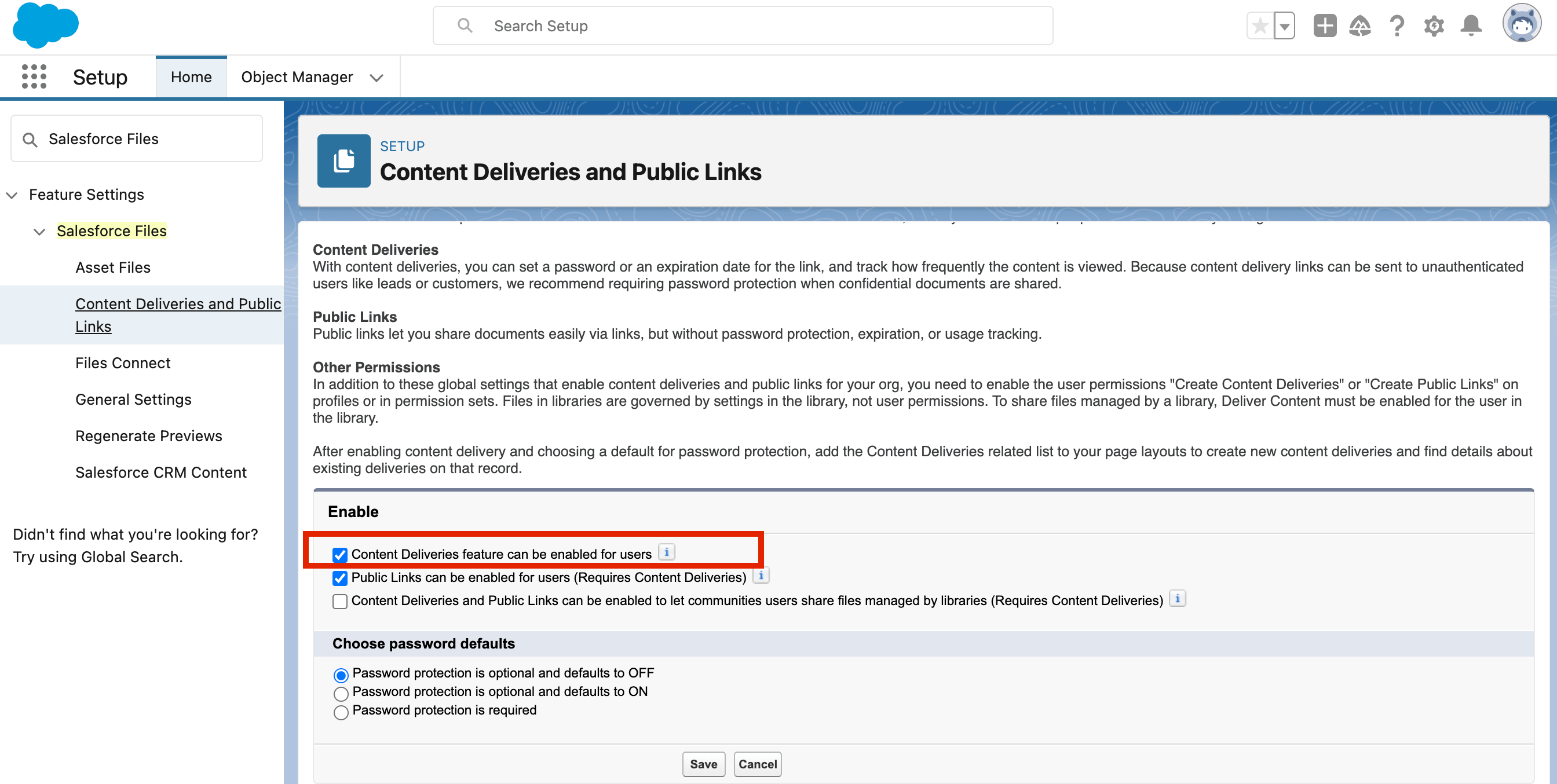
If you want to generate Salesforce Files public links, you need to enable Content Deliveries. This feature allows files from libraries to be shared externally via a secure URL.
To enable Content Deliveries:
1. Go to Setup
2. Search for Salesforce Files
3. Locate Content Deliveries
(Depending on your release, it may appear under Feature Settings → Salesforce Files → Content Deliveries)
4. Enable Content Deliveries
5. Save changes
How to Create and Manage a Content Library
Step 1: Create the content library in Salesforce
- Go to Setup
- Navigate to the Content Libraries tab
- Click “New Library”
- Give your library a name and description
- Specify the settings for the library, such as who has access and what type of content is allowed.
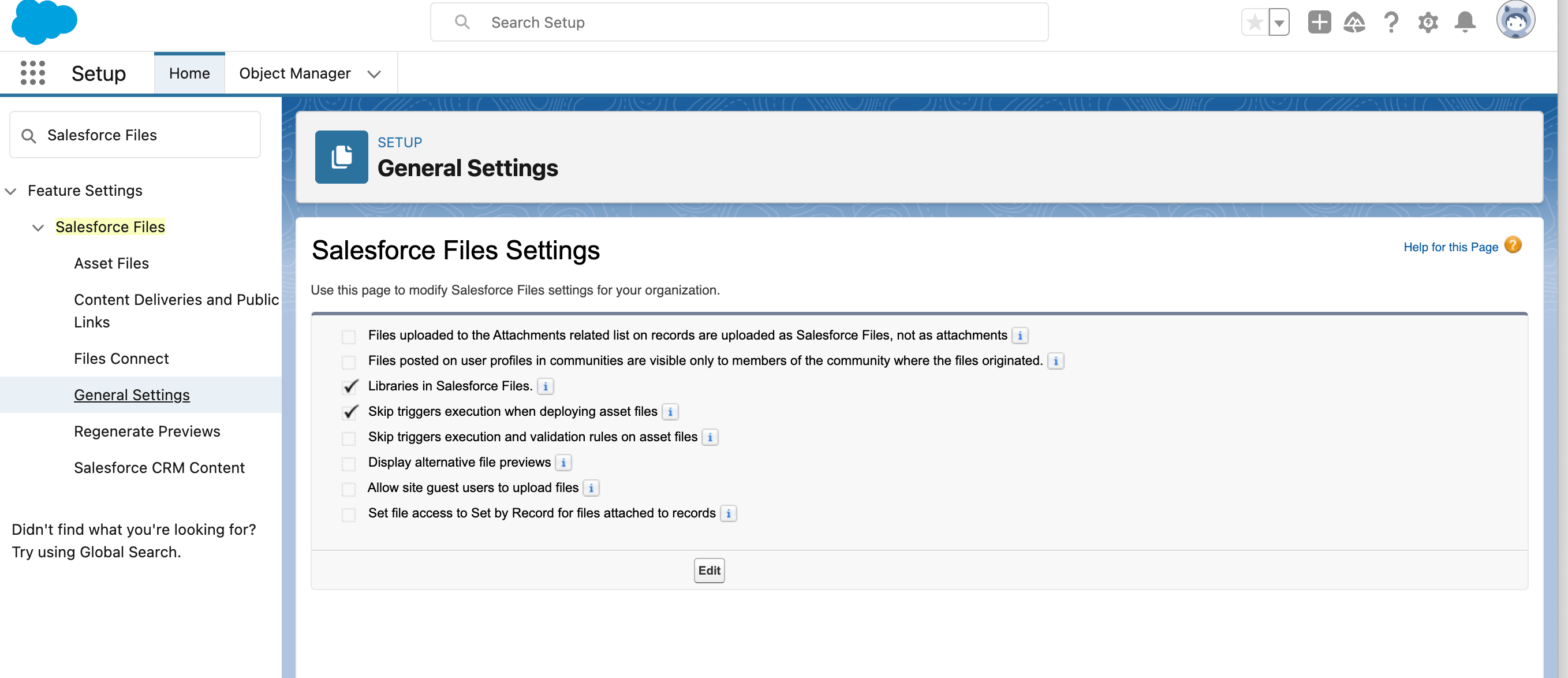
Now you can add Content Libraries to your Salesforce Files view. To do this:
- Go to the Salesforce Files tab
- Select General Settings
- Select the Content Libraries that you want to add to your Salesforce Files view.
This will allow you to access and manage your Content Libraries from within Salesforce Files, making it easier to share and collaborate on content with your team.
Step 2: Add Members
Once your Content Library is created, you must explicitly grant access to users. Otherwise, they won’t see it in Salesforce or in your Experience Cloud site.
To add members:
- Go to the App Launcher (grid icon).
- Search for and open Libraries.
- Click the name of your newly created library.
- Open the Members tab.
- Click Add Members. From here, you can search for individual users, Public Groups (recommended for scalability), or Roles (if your sharing model supports it).
- After selecting members, assign the appropriate permission level:
Viewer – Can view and download files.
Author – Can upload, edit, and manage files.
Library Administrator – Full control over content and membership. - Click Save to confirm.
Where admins often get stuck:
If you don’t see the Members tab, ensure you have “Manage Salesforce CRM Content” or equivalent library administrative permissions in your profile or permission set.
Best practice:
Instead of adding users one by one, create a Public Group (Setup → Public Groups) and assign the group to the library. This simplifies long-term access management.
Step 3: Organize the Structure
After configuring access, structure the library so users can easily navigate it inside Experience Cloud.
To create folders:
- Open the Libraries tab.
- Select your library.
- Navigate to the Content tab.
- Click New Folder (if available in your UI).
- Name the folder and save.
Create top-level folders based on how your audience searches for content. For example: Product Documentation, Sales Materials, Contracts, Training Resources
Tips:
- Keep folder nesting shallow (no more than 2–3 levels). Deep hierarchies slow navigation and confuse portal users.
- Assign one library owner responsible for maintaining folder structure and approving uploads to prevent content sprawl.
Step 4: Upload and Manage Files
To upload files into the library:
- Open the Libraries tab.
- Select your library.
- Go to the Content tab.
- Click Add Files or Upload Files.
- Select files from your computer and confirm upload.
Make sure the file is uploaded directly into the library, not just into Salesforce Files. Otherwise, it may not be visible to library members.
How to Add Salesforce Content Library to the Experience Cloud Site?
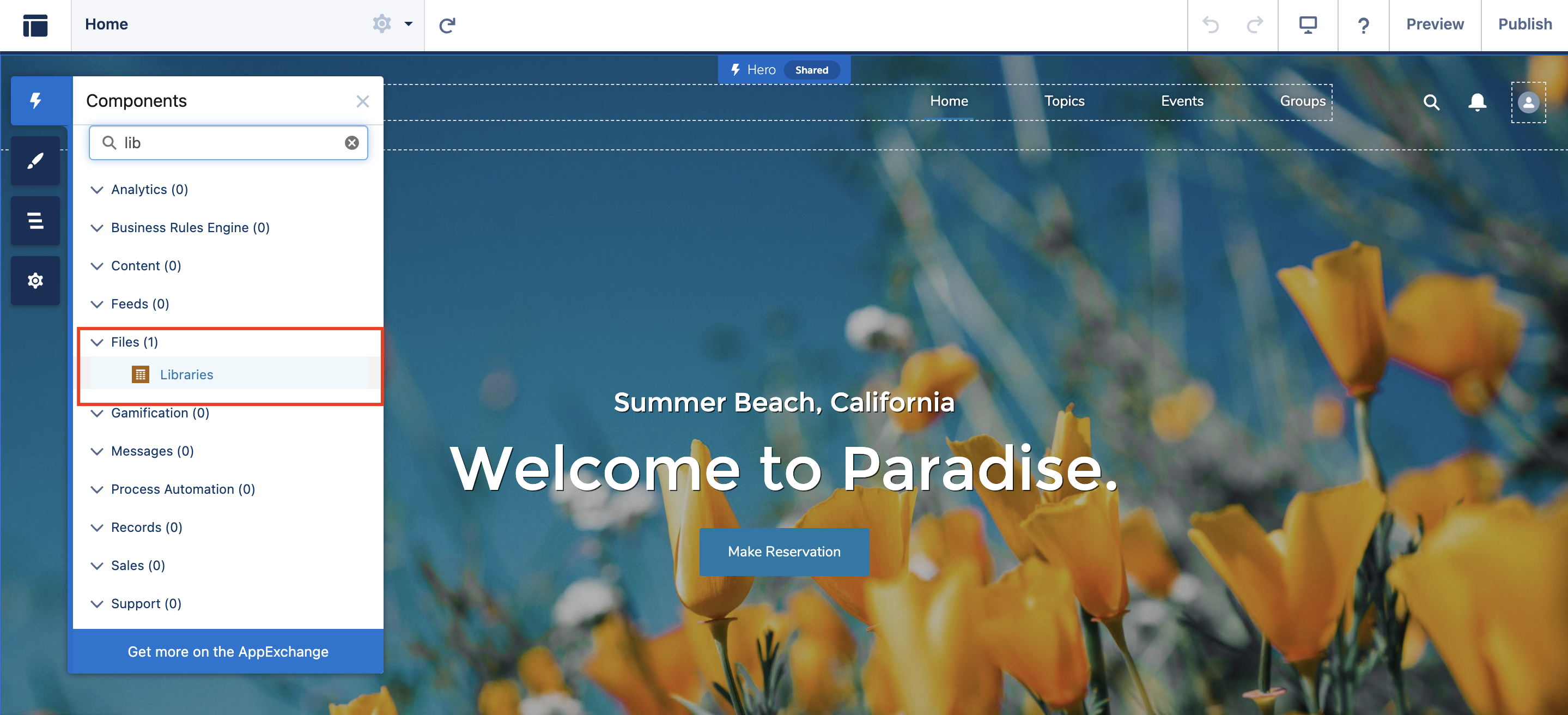
Once you’ve created your library, you can add it to your Experience Cloud site by using the Libraries component:
- Go to Experience Builder
- Navigate to the page where you want to add the library
- Open the Components tab (with the lightning icon)
- Find the Libraries component and drag and drop it onto the page
- In the component property, select the library you want to add from the dropdown list.
- Configure the component to display the library in either list view or tile view and specify any additional settings as needed.
Pro Tip:
Always test using the “Log in to Experience As User” option, or a test user profile. Admins often see more than external users.
Tips for making the most of Content Libraries in Salesforce Experience Cloud
To make your Content Library setup scalable:
- Define Folder Structure Early
Avoid restructuring later, as it impacts user experience. - Use Clear Naming Conventions
Example:ProductName_DocumentType_Version_Date - Leverage Metadata & Tags
Improve searchability beyond folder browsing. - Assign a Library Owner
Governance prevents content sprawl. - Use Versioning Properly
Update existing files instead of creating duplicates. - Audit Access Quarterly
Review library members and permissions regularly. - Avoid File Duplication
Use one source of truth. - Test as End Users
Especially after permission updates.
Troubleshooting: Common Content Library Issues
Here are the most frequent problems admins face:
Users Can’t See the Library
Check:
- Are they library members?
- Is the Libraries component added to the page?
- Is the site published?
Library Visible but Files Not Showing
Check:
- Were files shared to the library?
- File privacy settings
- File owner access restrictions
Public Link Not Working
Check:
- Is Content Deliveries enabled?
- Has the link expired?
- Was the file deleted or replaced?
Experience Users Have Unexpected Access
Check:
- Public groups assigned to library
- Permission sets
- Profile-level file permissions
Changes Not Reflected
Try:
- Test with another user profile
- Clear browser cache
- Test in Incognito
Want to supercharge your Salesforce knowledge?
Do you Need Help with Your Salesforce Experience Cloud Site?
Configuring Salesforce Content Libraries in Salesforce can quickly become complex, especially when managing partner tiers, advanced sharing rules, or strict security requirements. Misaligned permissions, unclear governance, or improper file visibility settings often lead to access issues and ongoing maintenance headaches.
If you want a secure, scalable setup done right the first time, Advanced Communities can help you design, configure, and optimize your Experience Cloud content architecture.
Contact us to discuss your implementation or request a consultation.
We also offer a range of Salesforce-native solutions that can enhance the functionality of your Experience Cloud site and meet your specific business needs. Whether you’re looking for a robust event management solution, a Salesforce knowledge management tool, association management software in Salesforce, or need support in implementing Salesforce online communities, support or PRM portals, we’re here to meet all your Salesforce Experience Cloud needs.
FAQ
1. What is a Salesforce Content Library and how is it used in Experience Cloud?
A Salesforce Content Library is a centralized file repository that allows organizations to store, organize, and share documents. In Experience Cloud, it enables secure file access for customers, partners, or members through the Libraries component.
2. How do I give users access to a Content Library?
Add them as library members directly or through public groups. Ensure they also have proper Salesforce Files permissions and an appropriate Experience Cloud license.
3. Why can’t Experience Cloud users see my library or files?
Common causes include missing library membership, unpublished site changes, file-level privacy restrictions, or missing profile permissions.
4. How do Content Deliveries (public links) work in Salesforce Files?
Content Deliveries allow you to generate secure public links for files stored in Salesforce. After enabling the feature in Setup, users can create shareable links with optional expiration and access settings.
5. Can I use Content Libraries to share documents securely with partners or customers?
Yes. With proper library permissions, file sharing rules, and Experience Cloud configuration, Content Libraries are a secure way to distribute documents to external users.
6. Can Salesforce Content Libraries be Used to Store All Types of Files?
Yes, Salesforce Content Libraries support a wide range of file types, including documents, spreadsheets, images, PDFs, and videos. This makes it an ideal solution for businesses that need to manage diverse types of content in one place while ensuring easy access and sharing across different teams and departments.