
Data Categories in Salesforce Knowledge
Last Updated: July 23, 2026
Finding accurate support information quickly can be challenging without a structured knowledge system. Salesforce Knowledge is a centralized knowledge base that stores and organizes articles, documentation, and support content. It helps teams deliver consistent answers and enables users to quickly find reliable information.
Data Categories organize this content by topic, product, region, or any logical hierarchy. They serve two main purposes: helping users navigate and filter articles efficiently, and controlling who can access specific knowledge content based on roles or permissions. As a result, they are essential for maintaining clarity and structure within the knowledge base.
For Experience Cloud sites, Data Categories are especially important because they affect how portal users discover and access Knowledge content. In support portals, partner portals, and member portals, a clear category structure helps users find relevant articles faster, reduces support pressure, and creates a more organized self-service experience.
Without a well-planned category structure, even a large Knowledge base can become difficult to navigate. Users may struggle to find the right content, while admins may find it harder to manage visibility rules across different audiences.
Quick Answer
Data Categories group Salesforce Knowledge articles into logical structures that make content easier to find and manage. They also control article visibility for different users and channels. The key benefits include:
- Enhanced filtering and navigation in the knowledge base
- Visibility managed through category assignments and role or channel permissions
- Users only see articles available to them in Knowledge and portal experiences
What are Data Categories in Salesforce Knowledge?
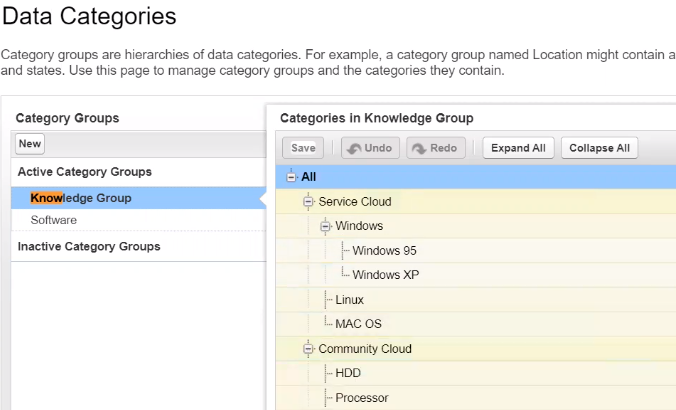
Data Categories in Salesforce Knowledge are a hierarchical classification system used to organize knowledge articles within a Salesforce org. A Data Category Group is the top-level container that represents a broad dimension of classification (for example, Products, Regions, or Services). Inside each group, you define Data Categories arranged in parent–child levels that form the hierarchy used to tag and organize articles. You can create multiple groups, and each group can include several levels of nested categories to reflect how your information is structured.
For example: Products → Hardware → Laptops → Model X
Where they’re used:
- Classifying Knowledge articles by topic, product, or audience
- Powering search and filter experiences in Knowledge and portals
- Supporting visibility rules that control who can access specific content
From a business perspective, Data Categories help organizations make Knowledge content easier to browse, filter, and govern. They also support different content experiences for different user groups, such as customers, partners, members, support agents, or regional teams.
What if you don’t assign categories?
If an article isn’t assigned to any Data Category, it won’t benefit from category-based filtering or navigation. Depending on your visibility configuration, the article may still be accessible through direct search or links, but users won’t be able to discover it via category filters, and category-based access rules won’t apply to it.
Salesforce Knowledge Management Guide: How to Improve Support Efficiency

Why Data Categories Matter for Experience Cloud Portals
In Salesforce Experience Cloud, Data Categories help turn a Knowledge base into a structured self-service experience. As part of a successful Salesforce Experience Cloud implementation, they make it easier for portal users to find the right content. Portal users usually do not think in terms of Salesforce objects or internal admin settings. They expect to find answers by topic, product, service, region, audience, or support scenario.
- For Salesforce support portals, Data Categories can help customers find troubleshooting guides, FAQs, and product documentation before submitting a case.
- For partner portals, they can organize enablement materials, sales resources, technical documentation, and program updates.
- For member portals, they can help members access resources, policies, event information, guides, and exclusive content.
That is why Data Categories should be planned as part of the overall Knowledge architecture, not treated only as a technical setup step.
How to Create Data Categories in Salesforce
Use Data Category Groups to define broad classification dimensions, then add hierarchical categories within each group.
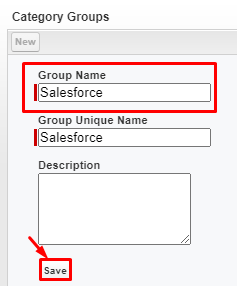
To create a Data Category Group:
- Go to Setup.
- In the Quick Find box, search for Data Category Setup and open it.
- Click New to create a Data Category Group.
- Enter a Name for the group (for example, Products).
- (Optional) Add a Description.
- Click Save.
- Select the newly created group to start adding categories.
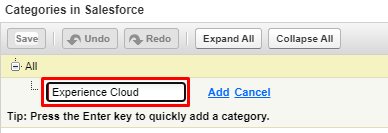
To Add Categories and Build the Hierarchy:
- With the group open, enter a Category Name in the input field.
- Click Add to create a parent category.

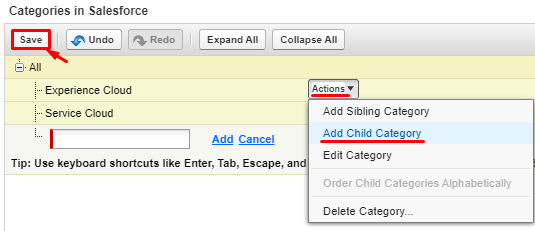
- To create a child category, open the parent’s Actions menu.
- Choose Add Child Category.

- Enter the child category name and click Add.
- Repeat as needed to build additional levels in the hierarchy.
- Click Save to apply changes.
Note: UI wording and navigation may vary by Salesforce edition and enabled features.
How to Assign Data Categories to Knowledge Articles
Creating categories is only the first step. Articles must be assigned to the appropriate categories so they can be filtered, discovered, and governed by visibility rules. Otherwise, they won’t function as intended. Below are simple steps to guide you through the process:
- Open the Knowledge article you want to classify.
- Click Edit (or open the draft version if versioning is enabled).
- Locate the Data Categories section or field on the article layout.
- Choose one or more categories from the relevant Data Category Group(s).
- Save your changes.
- Publish or Validate the article according to your workflow.
Note: The exact placement of the Data Categories field and publish/validate actions can differ by layout and configuration.
Quick Tip:
After assigning categories, verify how the article appears for different roles or channels. This helps confirm that category-based visibility behaves as expected before broad release.
Default Data Categories Visibility Settings
Data Category Visibility controls which knowledge articles users can see based on assigned data categories. By setting default visibility for a category group, you define the scope of content available to a user or profile. There are three variations of visibility:
- All Categories: Users can view articles from every category within the category group.
- None: Users cannot view articles from the category group.
- Custom: You specify exactly which categories users can access. In practice, this means users will only see articles assigned to the selected categories. If no categories are assigned, users will only see uncategorized articles.
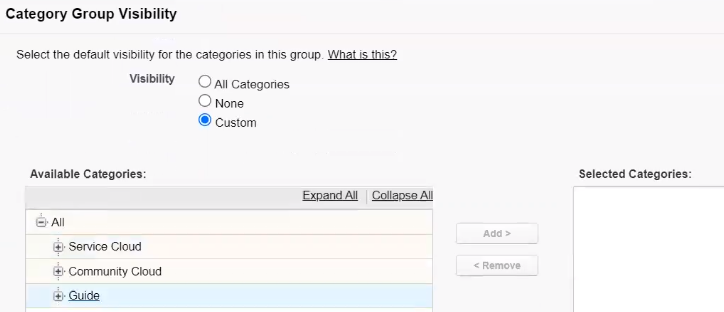
Visibility settings are especially important when the same Knowledge base serves multiple audiences. For example, public users, customers, partners, members, and internal teams may all need access to different sets of articles. A clear visibility model helps prevent users from seeing irrelevant or restricted content while still making the right information easy to find.
Data Category Visibility on the profile level
It is also possible to configure Data Category visibility using profiles or permission sets in Salesforce. This allows you to define which articles users can access based on their role, audience, or channel (for example, internal support agents vs. portal users, partners vs. customers, or Tier 1 vs. Tier 2 support teams).
This approach is typically used when different groups of users should see different knowledge content — such as region-specific documentation (EMEA vs. North America), product-line access (Hardware vs. Software), partner-only materials, or role-based procedures (agents vs. managers). If users report that they see the wrong articles or cannot find expected content, check their profile or permission set Data Category Visibility settings first.
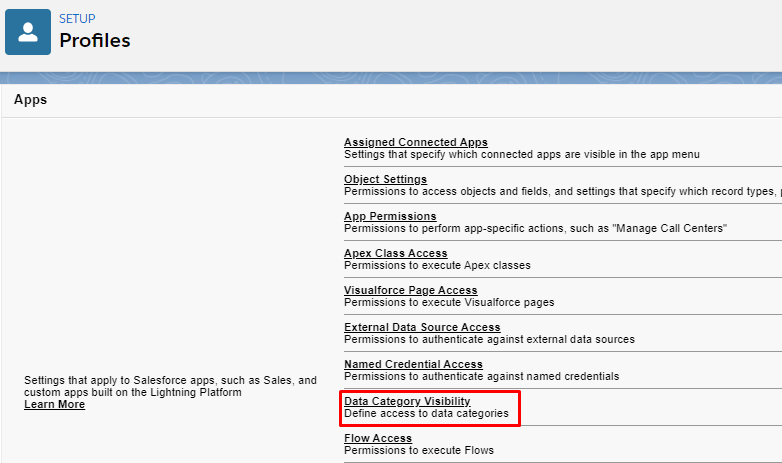
You can specify for each profile which categories are visible and which articles will not be available to users with that profile:
- Go to Setup → Profiles → select the appropriate profile
- Data Category Visibility → configure visibility for the required categories.
If you’re configuring Knowledge for Experience Cloud users and want to get visibility and navigation right the first time, our team can help you design and implement the optimal setup in Salesforce.
Data Categories for Support, Partner, and Member Portals
The right Data Category structure depends on the type of Experience Cloud portal you are building.
- For support portals, categories may be organized by product, service, issue type, region, or customer segment. This helps users find relevant Knowledge Articles faster and can reduce the number of repetitive support cases.
- For partner portals, categories can be used to organize sales enablement content, product documentation, onboarding resources, technical materials, and partner program information. Partner-facing categorization schemes like these are often a core part of a Salesforce Partner Cloud implementation, helping companies structure content for channel partners at scale.
- For member portals, categories can help structure resources, policies, event-related information, member guides, training materials, and exclusive content for different membership groups, improving Salesforce-native membership management.
The key is to design categories around real user needs, not only around the internal structure of the company.
Need to improve Knowledge navigation in your Salesforce Experience Cloud portal? Advanced Communities helps organizations structure Knowledge content, improve article discoverability, configure visibility, and create better self-service experiences for customers, partners, and members. Talk to an Experience Cloud Expert today.
Need Better Knowledge Navigation in Salesforce Experience Cloud?
Out of the box, Data Categories are not fully available as a flexible navigation and filtering experience in Experience Cloud sites. This can create challenges for organizations that need a structured Knowledge base for customers, partners, members, or support teams.
If users cannot browse Knowledge content by topic, audience, product, or service area, the portal may feel incomplete even when the articles themselves are well written. In many cases, teams need a more advanced Knowledge navigation layer that works naturally inside Experience Cloud.
Advanced Communities developed AC Knowledge Management Enterprise, a Lightning-native component designed to help organizations improve Knowledge navigation, filtering, and article management in Salesforce Experience Cloud. It is designed for teams that need a more structured, scalable, and user-friendly Knowledge experience.
Want data-category filtering and better Knowledge navigation in Experience Cloud? Learn more about our product and see how you can benefit from it.
AC Knowledge Management Enterprise
see product detailsFAQ
1. What are Data Categories in Salesforce Knowledge?
Data Categories are labels used to organize Knowledge articles into logical groups, making it easier for users to find content and control access based on their role or profile. Some common data categories in Salesforce Knowledge are Article Data, Category Data, Rating Data, View Data, Comment Data, Related Article Data, Labels.
2. What is Data Classification in Salesforce?
Data Classification is the process of tagging articles with categories from Data Category Groups. It determines both how articles are organized and who can access them. By classifying articles in your Salesforce org effectively, businesses can improve search results, ensure consistency, and track article performance.
3. How many levels can a Data Category Group have?
By default, a Data Category Group can have up to five hierarchy levels. Salesforce Support can increase the limit to eight levels if required.
4. Why can’t some users see articles after categories are set?
Article visibility depends on the user’s profile and permission sets. If a user doesn’t have access to the article’s assigned Data Categories, they won’t see it.
5. Is it possible to filter Knowledge articles on the Experience Cloud site?
Out of the box, Salesforce Knowledge does not provide article filtering on Experience Cloud sites. To add filtering by categories or other criteria, you need a custom solution or apps like AC Knowledge Management Enterprise.
6. Why are Data Categories important for Experience Cloud portals?
Data Categories help portal users browse and filter Knowledge Articles by topic, product, audience, region, or service area. This improves article discoverability and makes self-service easier for customers, partners, and members.
7. Can Data Categories control who sees Knowledge Articles?
Yes. Data Category Visibility settings can control which categories are available to different profiles or permission sets. This helps organizations show the right Knowledge content to the right audiences.
8. How can Data Categories improve self-service support?
A clear Data Category structure helps users find relevant answers faster without contacting support. This can reduce repetitive support requests and improve the overall portal experience.